Azure Databricks Job Orchestration and Scheduling
Project Overview
This guide walks you through creating and configuring Azure Databricks Jobs to orchestrate multiple notebooks, define task dependencies, execute Dimension and Fact table pipelines, create a master orchestration job, and schedule automated daily execution.
By completing this guide, you will:
- Create a Databricks Job
- Configure Notebook Tasks
- Build a Dimension Refresh Workflow
- Build a Fact Refresh Workflow
- Configure Task Dependencies
- Create a Master Orchestration Job
- Schedule Daily Pipeline Execution
- Monitor Job Runs
Architecture
                Daily Scheduler
                      │
                      ▼
              Master Orchestration Job
                      │
          ┌───────────┴───────────┐
          ▼                       ▼
   Daily Refresh DIM        Daily Refresh FACT
          │                       │
          ▼                       ▼
  Bronze → Silver → Gold   Bronze → Silver → Gold
          │                       │
          └───────────┬───────────┘
                      ▼
               Analytics Ready Tables
Prerequisites
Before creating Databricks Jobs, ensure you have:
- Azure Databricks Workspace
- Unity Catalog configured
- Required notebooks created
- Serverless Compute enabled (or Compute Cluster)
- Notebook permissions configured
- Bronze, Silver and Gold notebook structure available
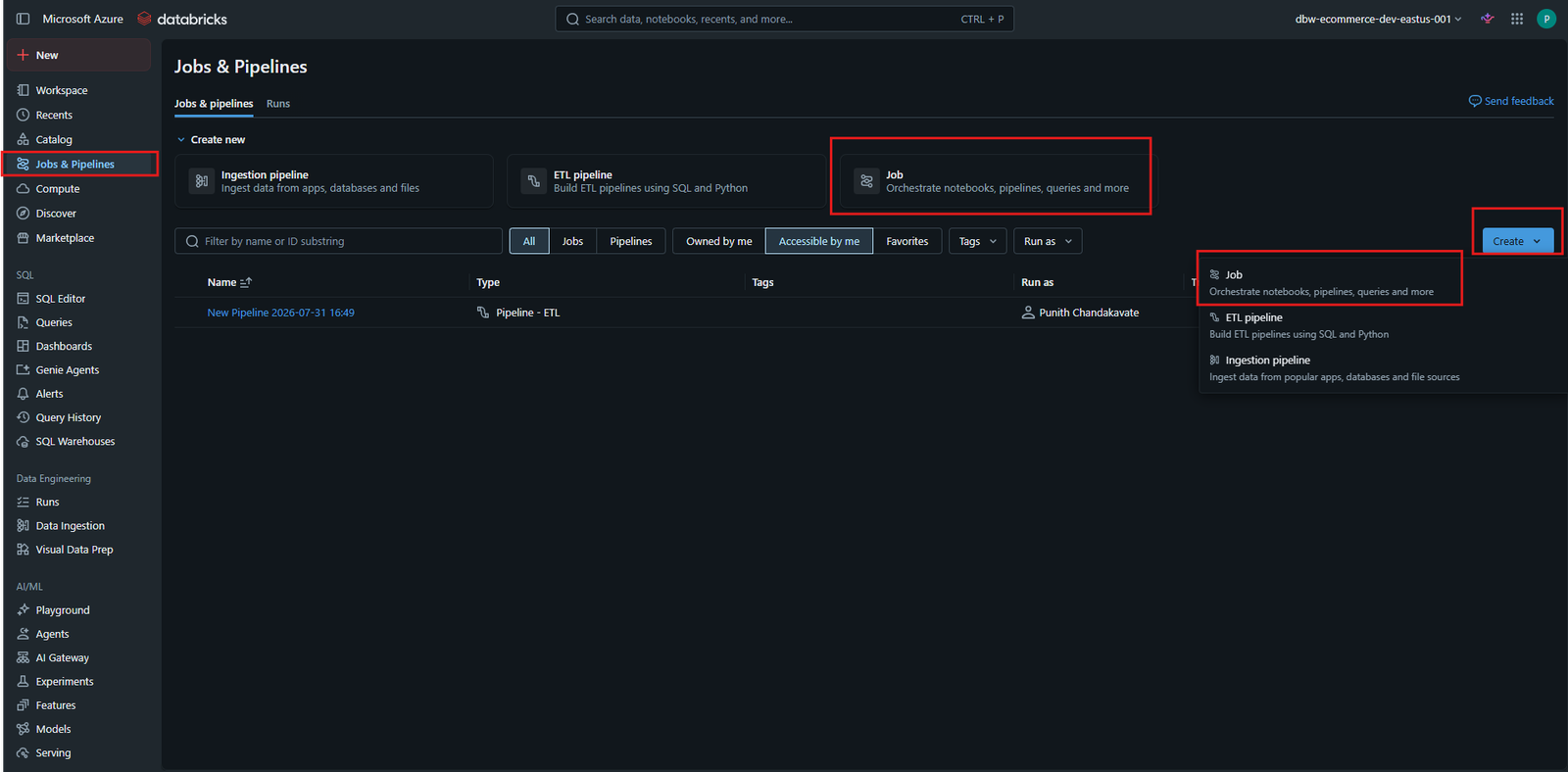
Step 1 — Create a New Job
Navigate to:
Jobs & Pipelines
        └── Create
                └── Job
Provide a meaningful Job Name.
Example:
daily_refresh_dim
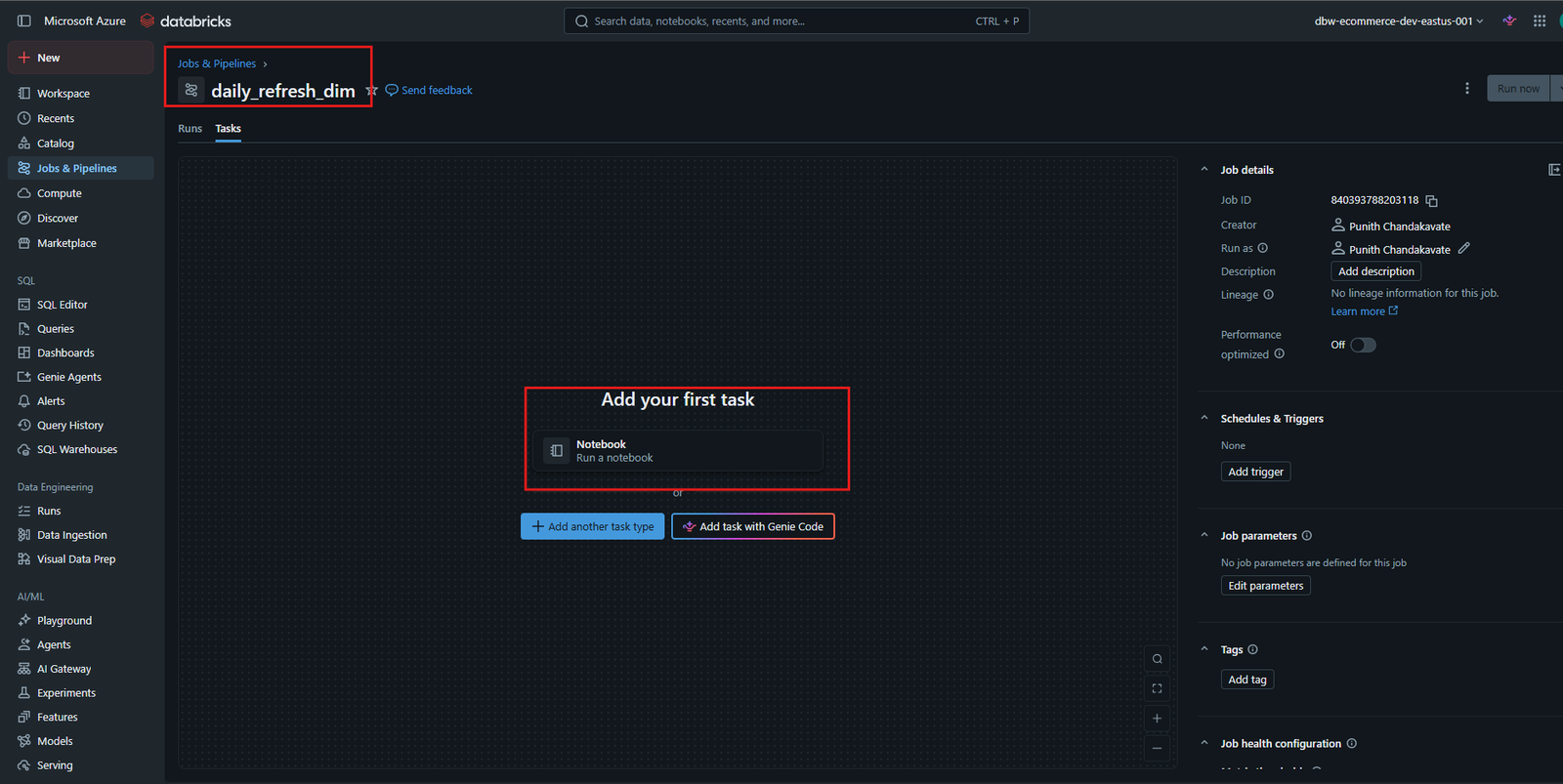
Step 2 — Add the First Notebook Task
Inside the Job page click
Notebook
This creates the first task for your workflow.
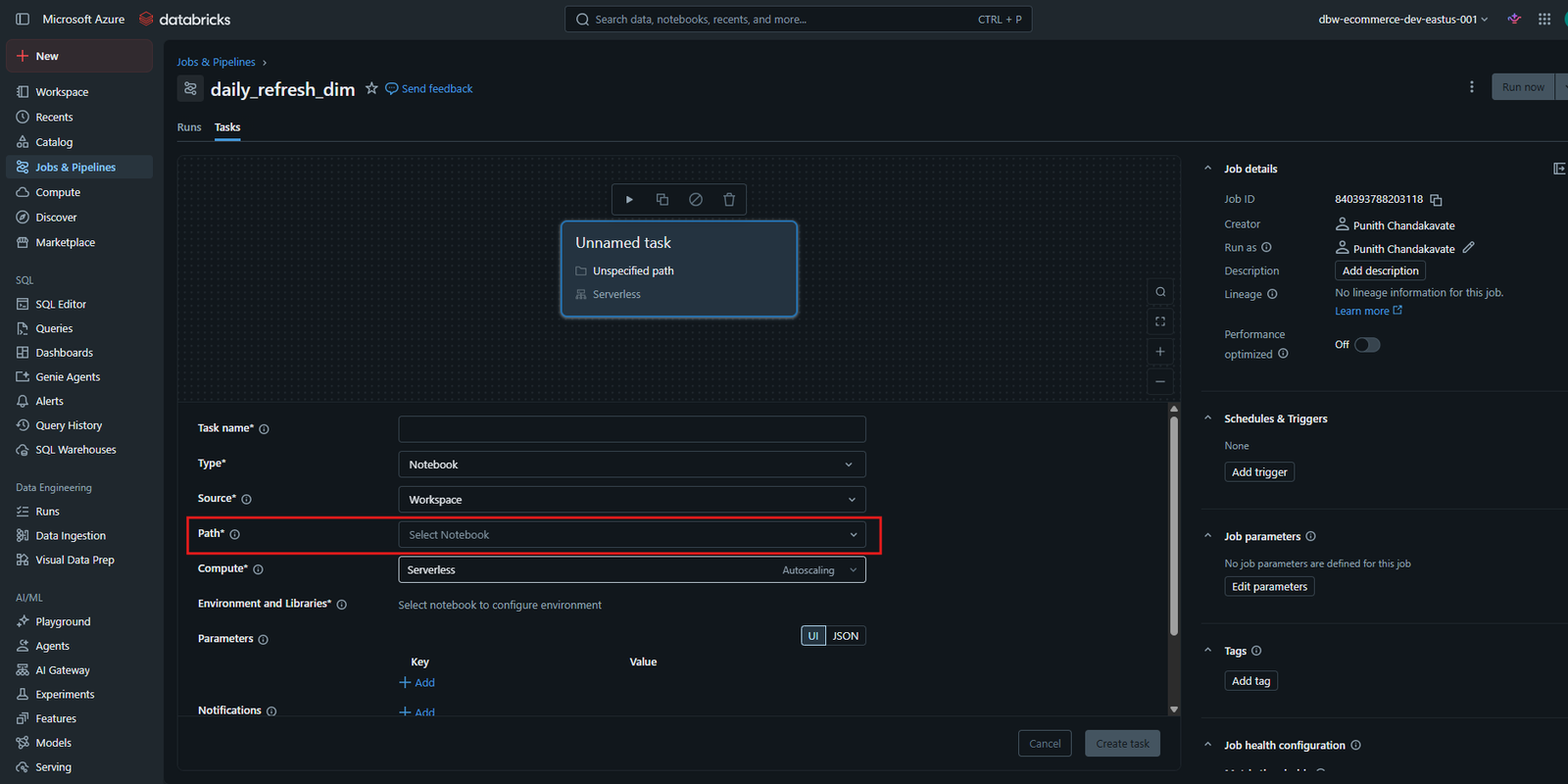
Step 3 — Select the Notebook
Configure the notebook task.
| Property | Value |
|---|---|
| Type | Notebook |
| Source | Workspace |
| Compute | Serverless |
Click
Path
Browse to your notebook.
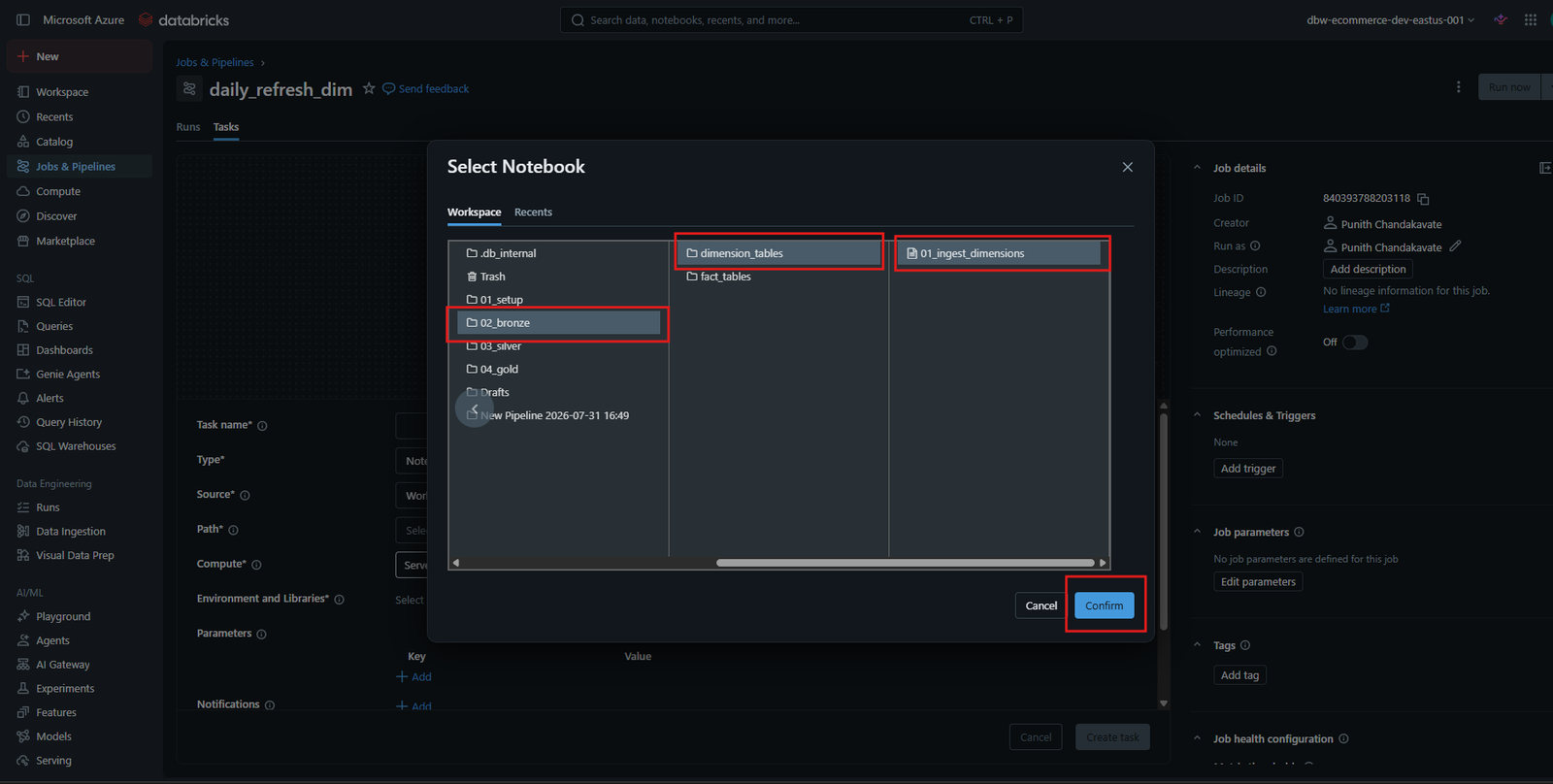
Step 4 — Select Notebook Path
Browse through the Workspace folders.
Example:
Workspace
    └── 02_bronze
            └── dimension_tables
                    └── 01_ingest_dimensions
Click
Confirm
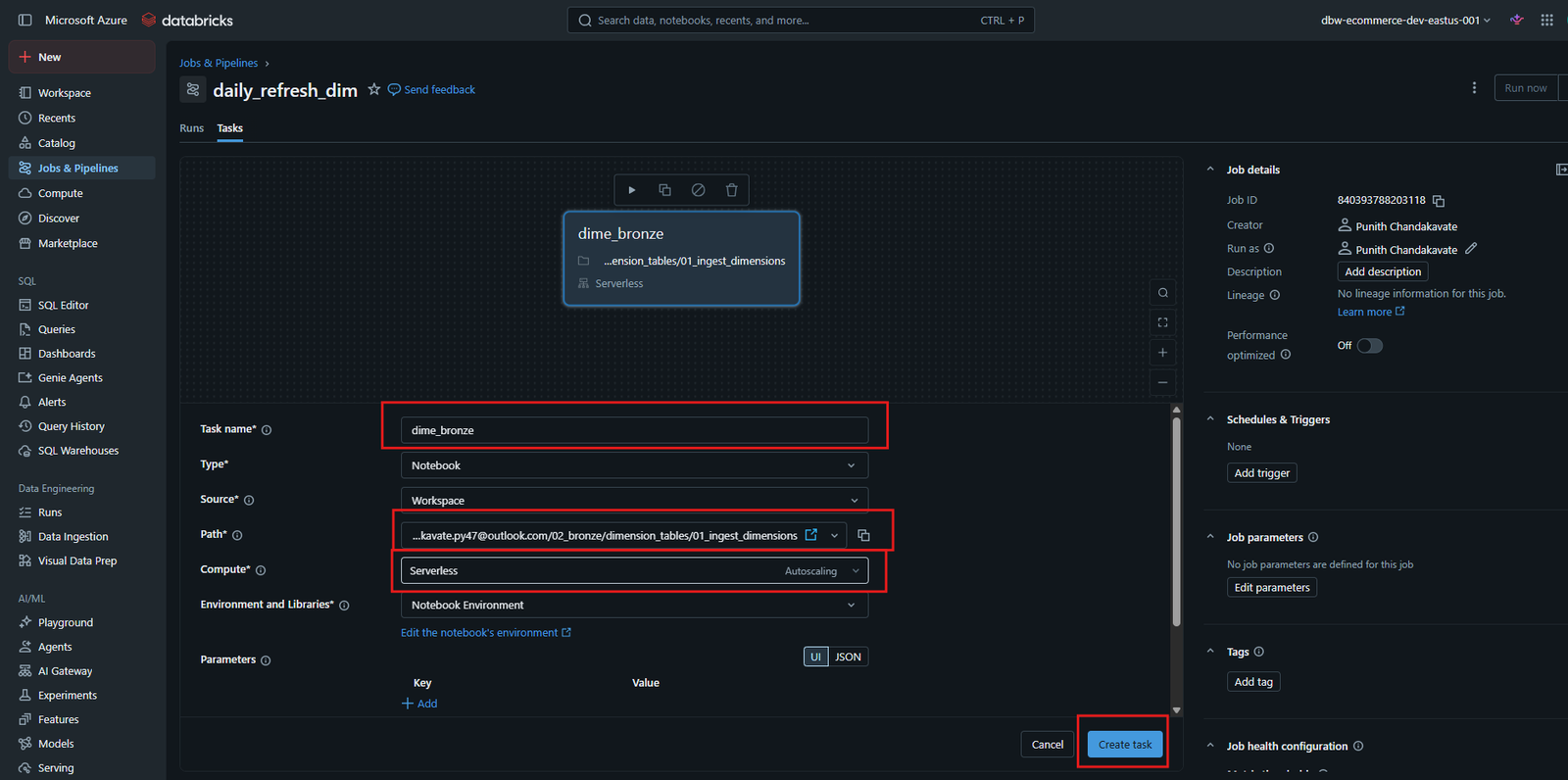
Step 5 — Configure the Task
Configure the notebook task.
| Property | Value |
|---|---|
| Task Name | dime_bronze |
| Notebook Path | 02_bronze/dimension_tables/01_ingest_dimensions |
| Compute | Serverless |
Click
Create Task
📂 Step 6 — Add Remaining Tasks
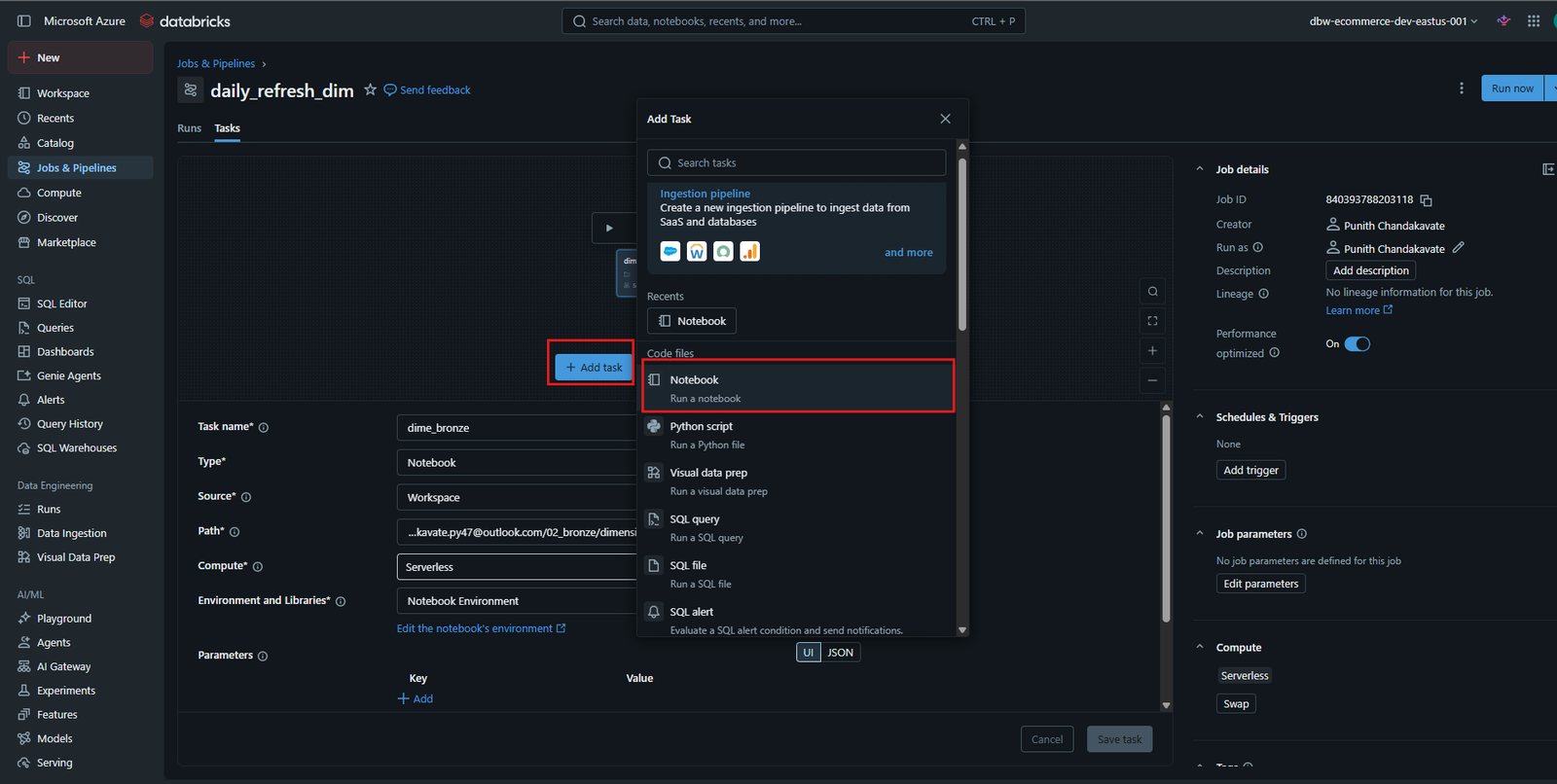
Click
Add Task
Add additional notebooks.
Example workflow:
- Use_Silver_CommonUtils
- Silver_Brand_Dim
- Silver_Category_Dim
- Silver_Product_Dim
- Silver_Customer_Dim
- Silver_Calendar_Dim
- Use_Gold_CommonUtils
- Gold_Product_Dim
- Gold_Customer_Dim
- Gold_Calendar_Dim
Configure task dependencies so each notebook starts only after the required upstream task succeeds.
Step 7 — Dimension Pipeline Completed
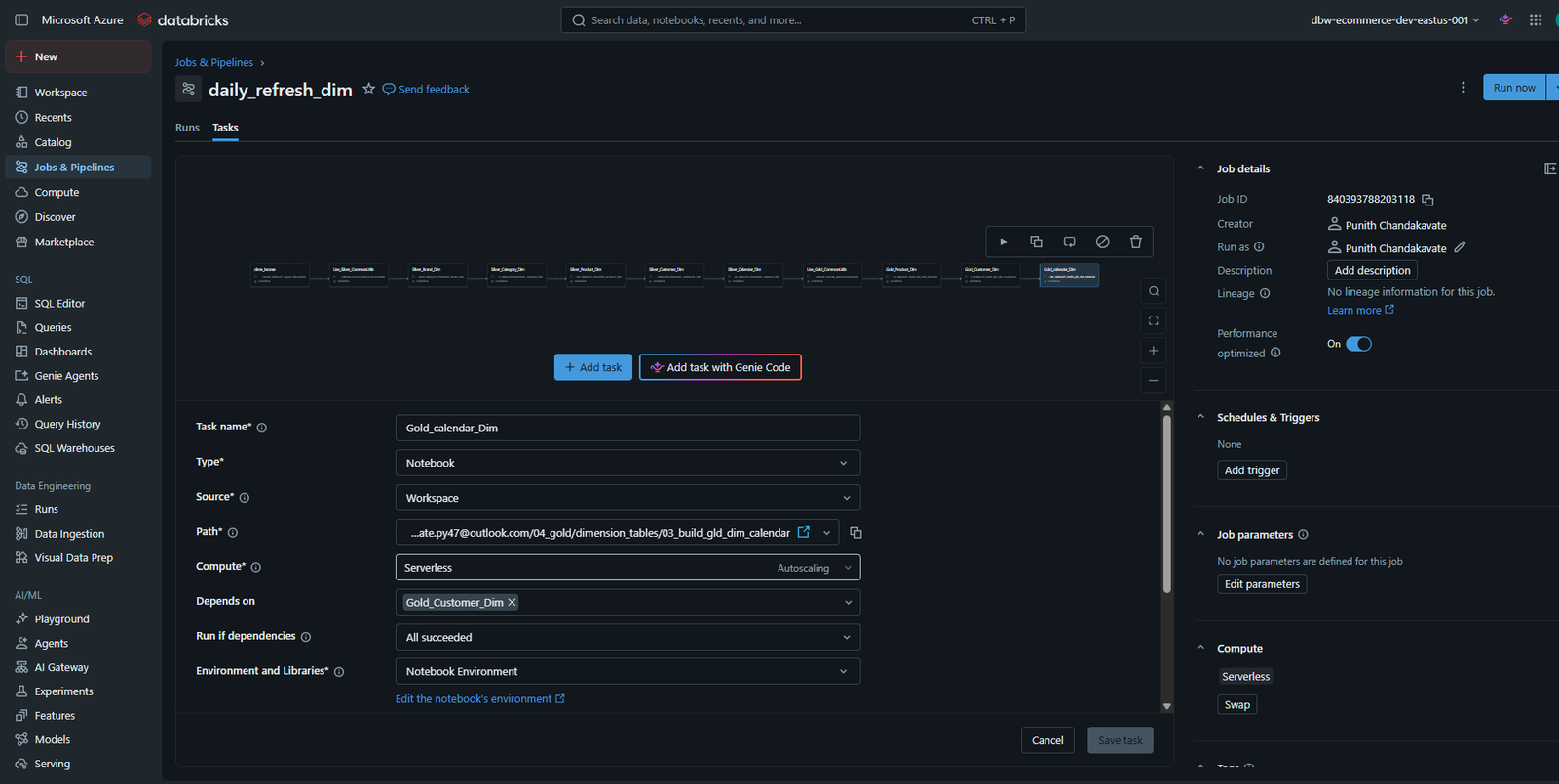
After configuring all notebook tasks, the workflow should resemble a complete dependency graph.
Example execution flow:
Bronze
   │
   ▼
Silver Common Utilities
   │
   ├── Brand
   ├── Category
   ├── Product
   ├── Customer
   └── Calendar
          │
          ▼
Gold Common Utilities
          │
          ├── Product
          ├── Customer
          └── Calendar
Step 8 — Run the Dimension Job
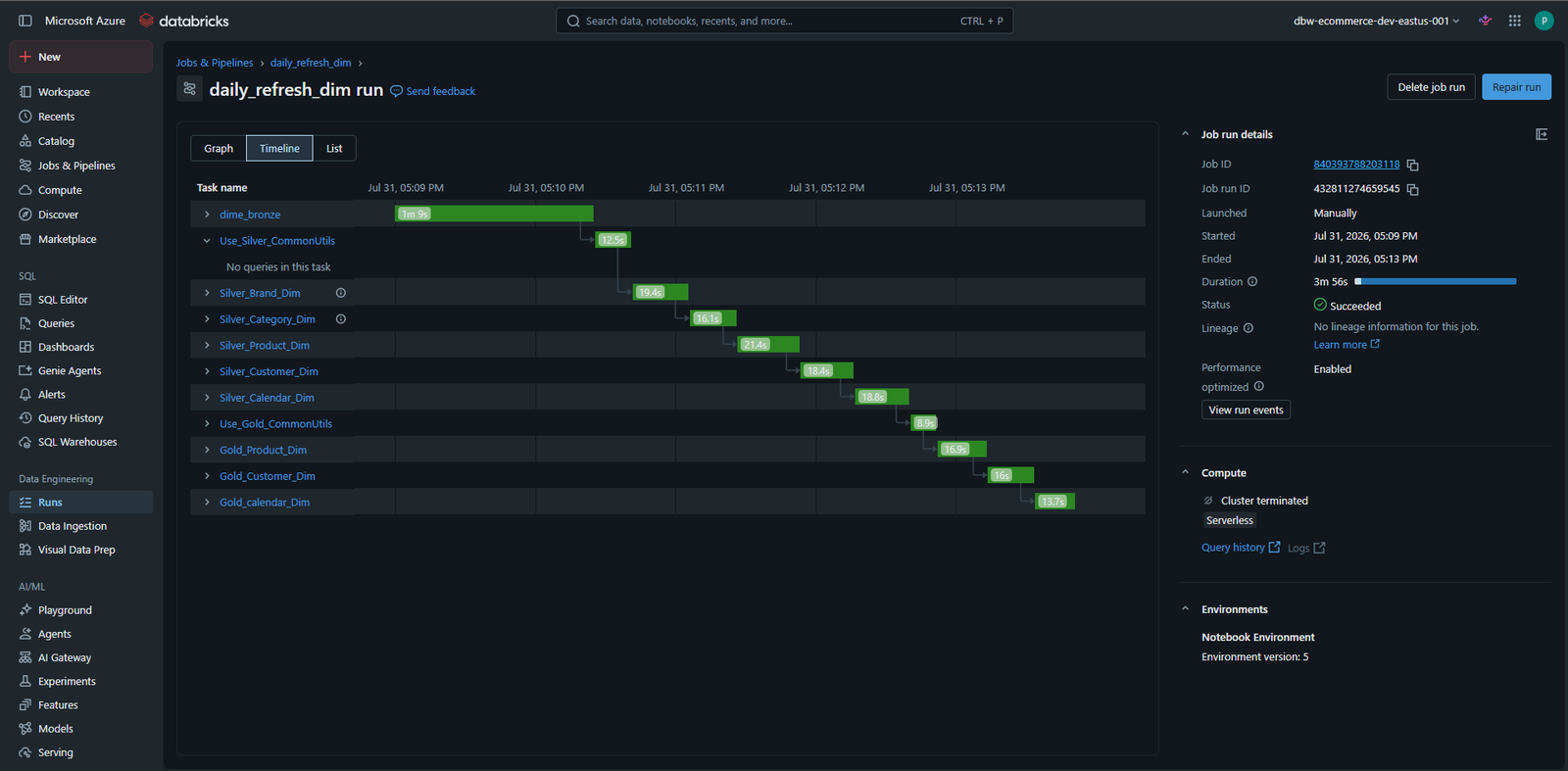
Click
Run Now
Databricks executes every task according to the configured dependencies.
The Timeline view displays:
- Task execution order
- Start time
- End time
- Duration
- Success status
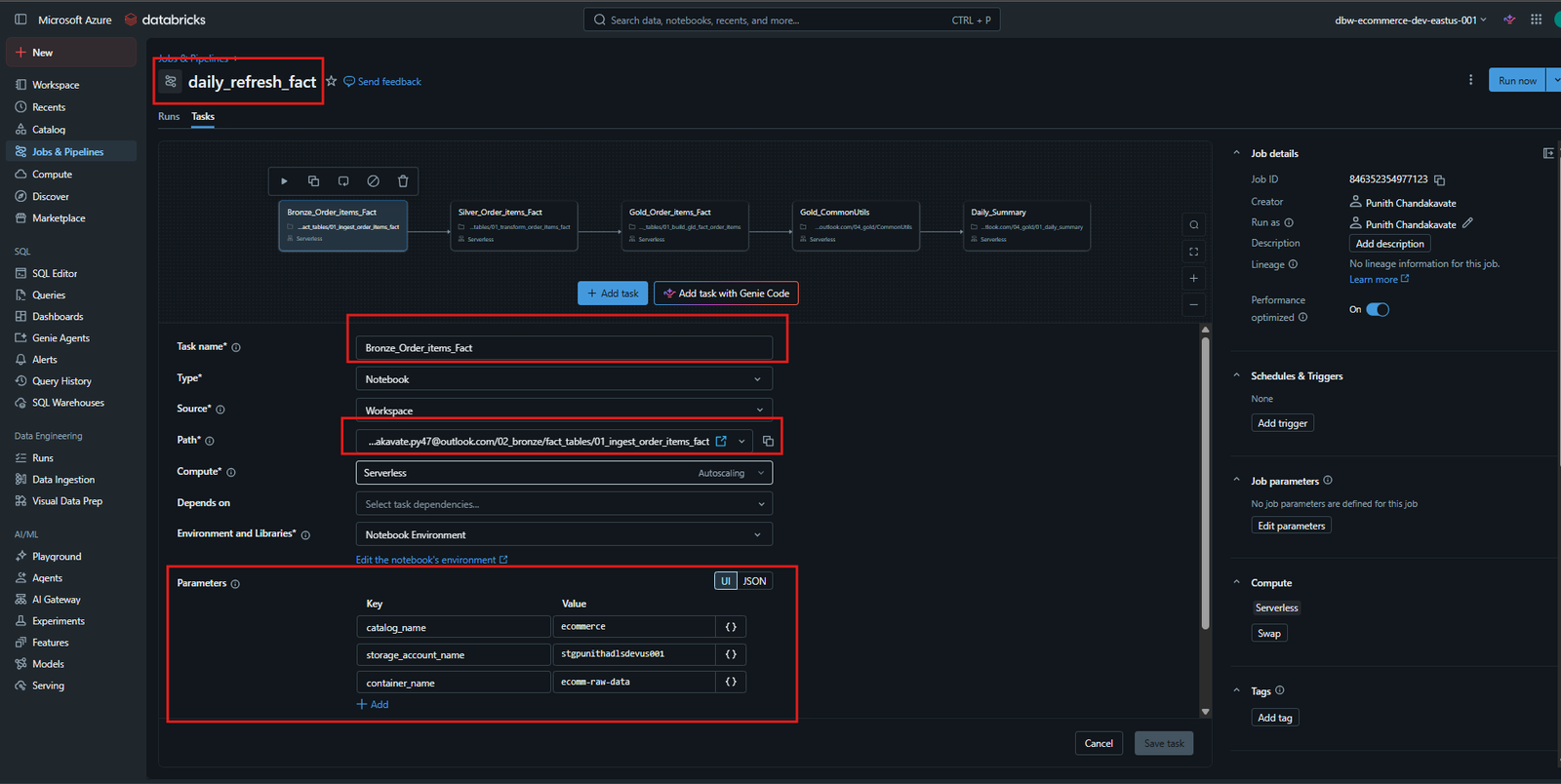
Step 9 — Create the Fact Refresh Job
Create another Job.
Example:
daily_refresh_fact
Add notebook tasks for Fact processing.
Example tasks:
- Bronze_Order_Items_Fact
- Silver_Order_Items_Fact
- Gold_Order_Items_Fact
- Gold_CommonUtils
- Daily_Summary
If required, configure Job Parameters such as:
| Parameter | Example |
|---|---|
| catalog_name | ecommerce |
| storage_account_name | storageaccount001 |
| container_name | ecom-raw-data |
Step 10 — Create the Master Orchestration Job
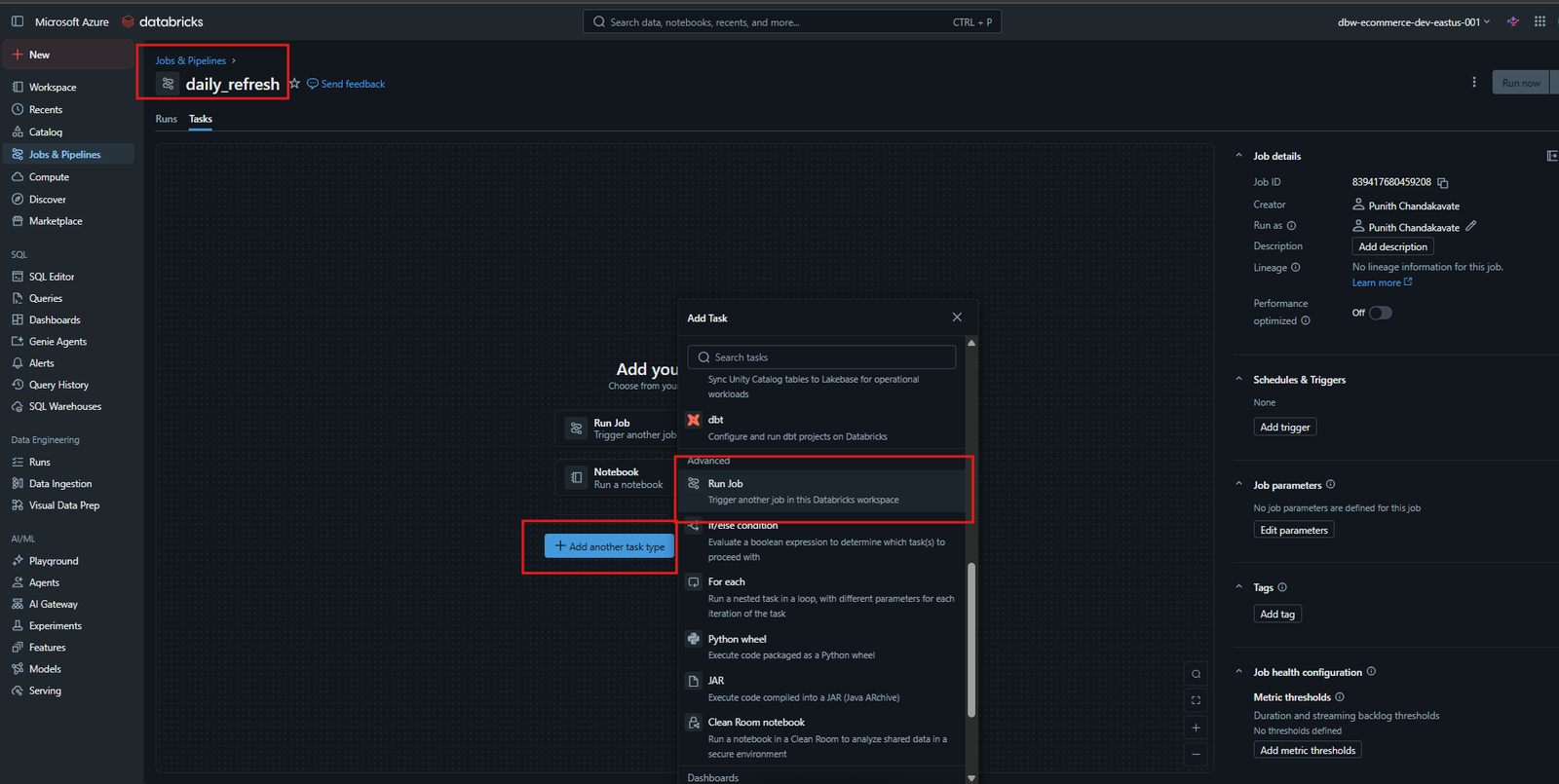
Create one more Job.
Example:
daily_refresh
Instead of Notebook tasks, add
Run Job
tasks.
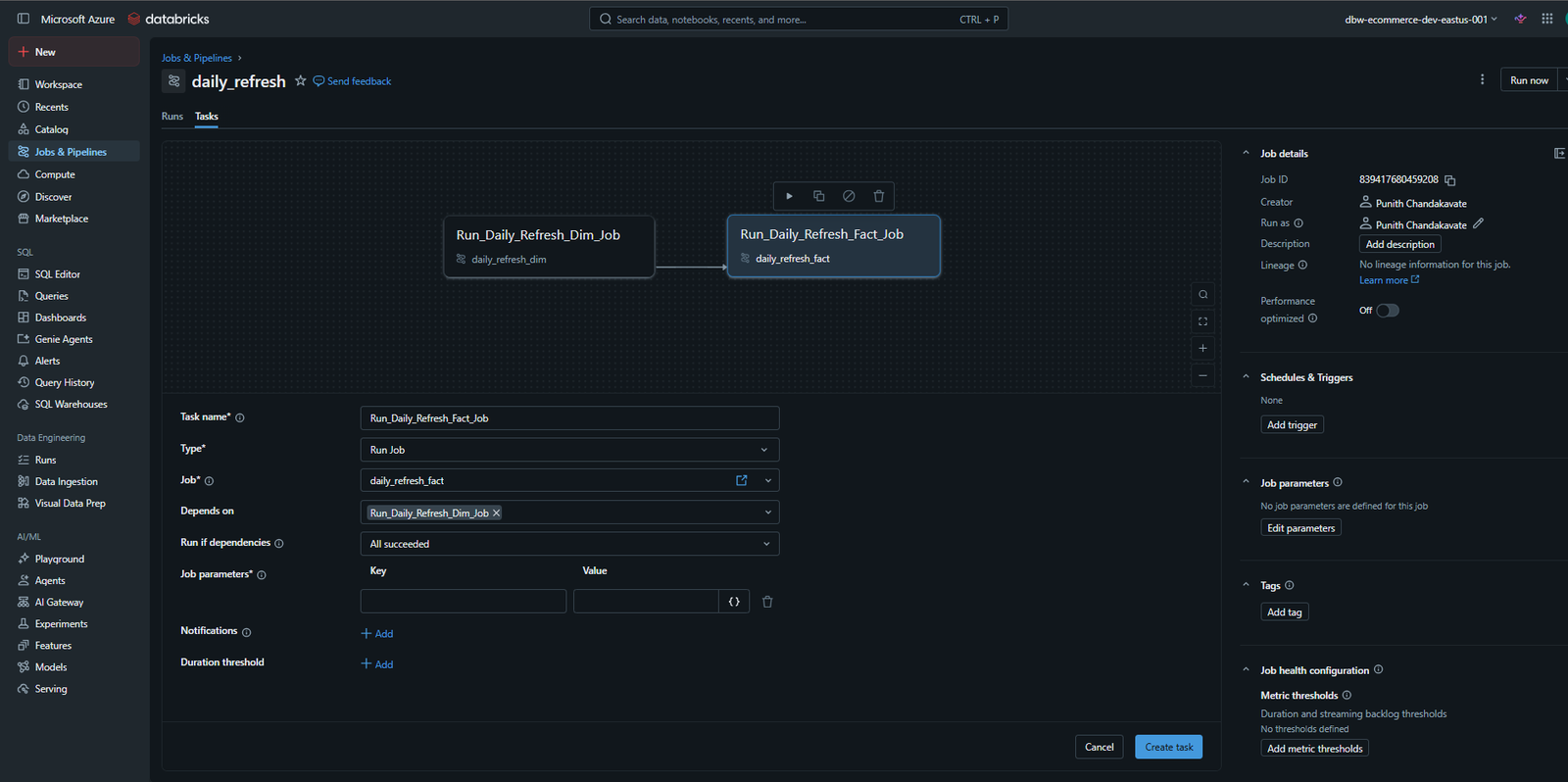
Add:
- Run_Daily_Refresh_Dim_Job
- Run_Daily_Refresh_Fact_Job
Configure the Fact Job to depend on successful completion of the Dimension Job.
Execution Flow:
Daily Refresh DIM
          │
          ▼
Daily Refresh FACT
Step 11 — Final Master Workflow
The completed orchestration should contain two Job tasks.
Run_Daily_Refresh_Dim_Job
              │
              ▼
Run_Daily_Refresh_Fact_Job
This allows one master Job to execute the complete ETL workflow.
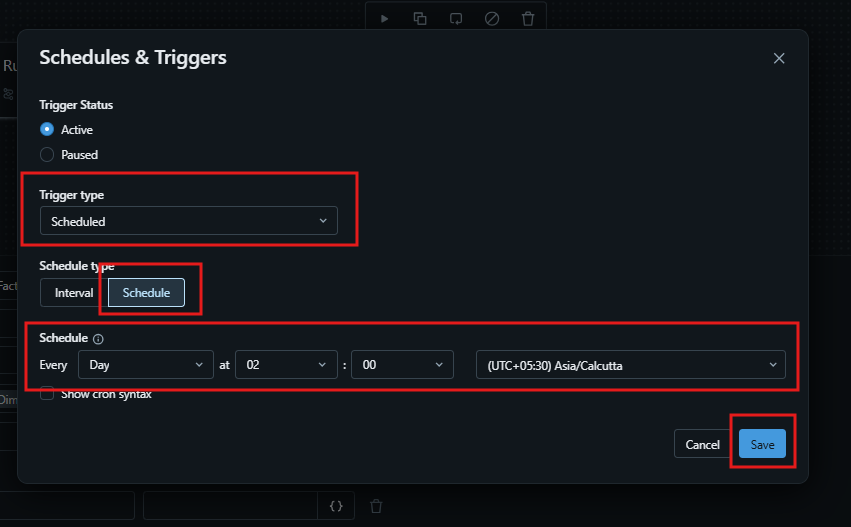
Step 12 — Configure Daily Schedule
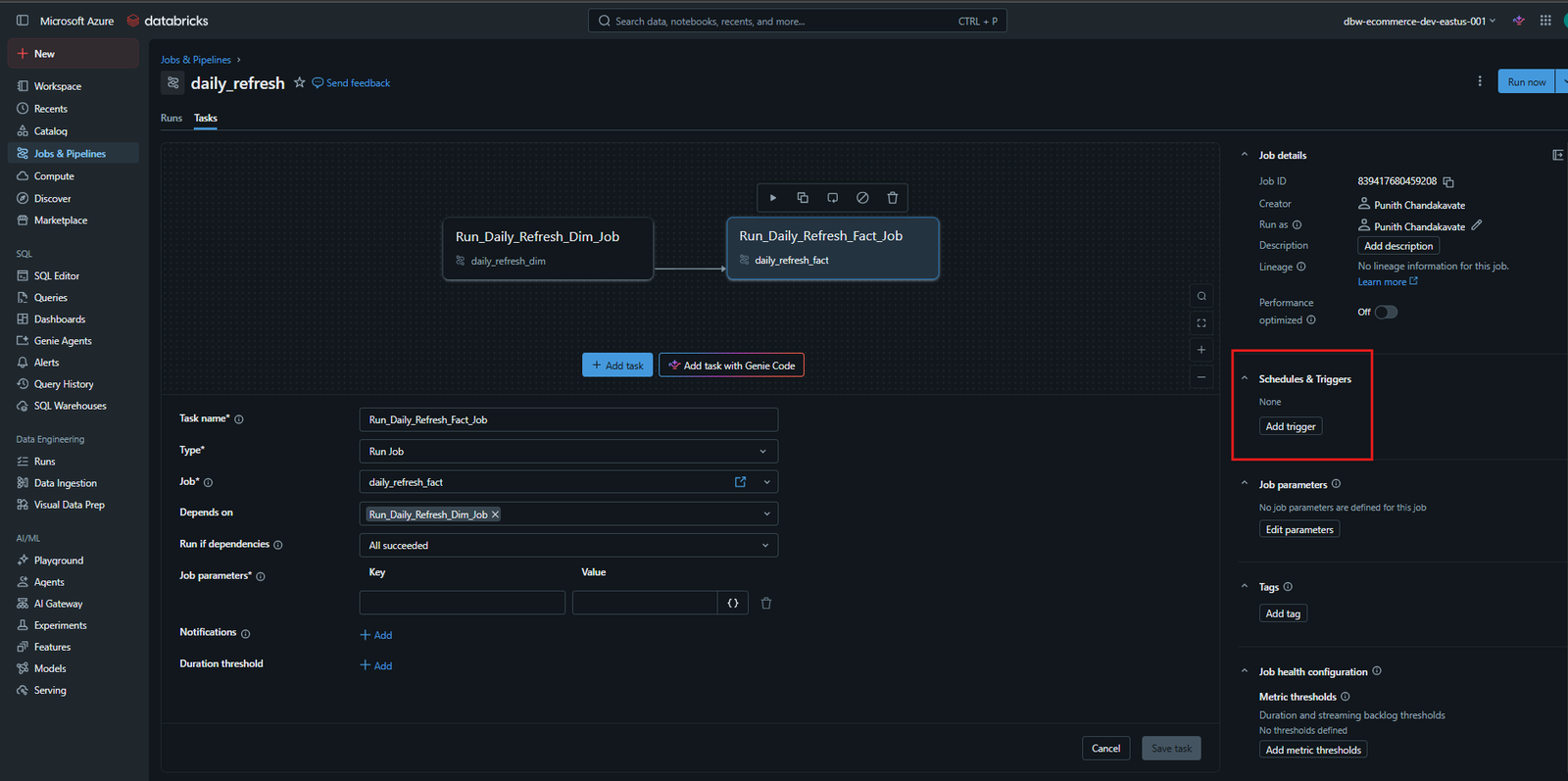
Open
Schedules & Triggers
Click
Add Trigger
Configure:
| Property | Value |
|---|---|
| Trigger Type | Scheduled |
| Schedule Type | Schedule |
| Frequency | Every Day |
| Time | 02:00 |
| Time Zone | Asia/Calcutta (UTC +05:30) |
Click
Save
Step 13 — Verify the Schedule
After saving, the trigger appears under
Schedules & Triggers
Your pipeline will now execute automatically every day according to the configured schedule.
Workflow Summary
Daily Scheduler
        │
        ▼
Master Job
        │
        ├──────────────► Daily Refresh DIM
        │                       │
        │                       ▼
        │                Bronze Layer
        │                       │
        │                       ▼
        │                Silver Layer
        │                       │
        │                       ▼
        │                 Gold Layer
        │
        ▼
Daily Refresh FACT
        │
        ▼
Bronze Layer
        │
        ▼
Silver Layer
        │
        ▼
Gold Layer
        │
        ▼
Daily Summary
Recommended Job Naming Convention
| Job | Naming Pattern |
|---|---|
| Dimension Job | daily_refresh_dim |
| Fact Job | daily_refresh_fact |
| Master Job | daily_refresh |
| Bronze Tasks | Bronze_ |
| Silver Tasks | Silver_ |
| Gold Tasks | Gold_ |