Azure Data Lake Storage Gen2 (ADLS Gen2)
Overview
Azure Data Lake Storage Gen2 (ADLS Gen2) is Microsoft’s enterprise-grade cloud storage service designed for big data analytics workloads.
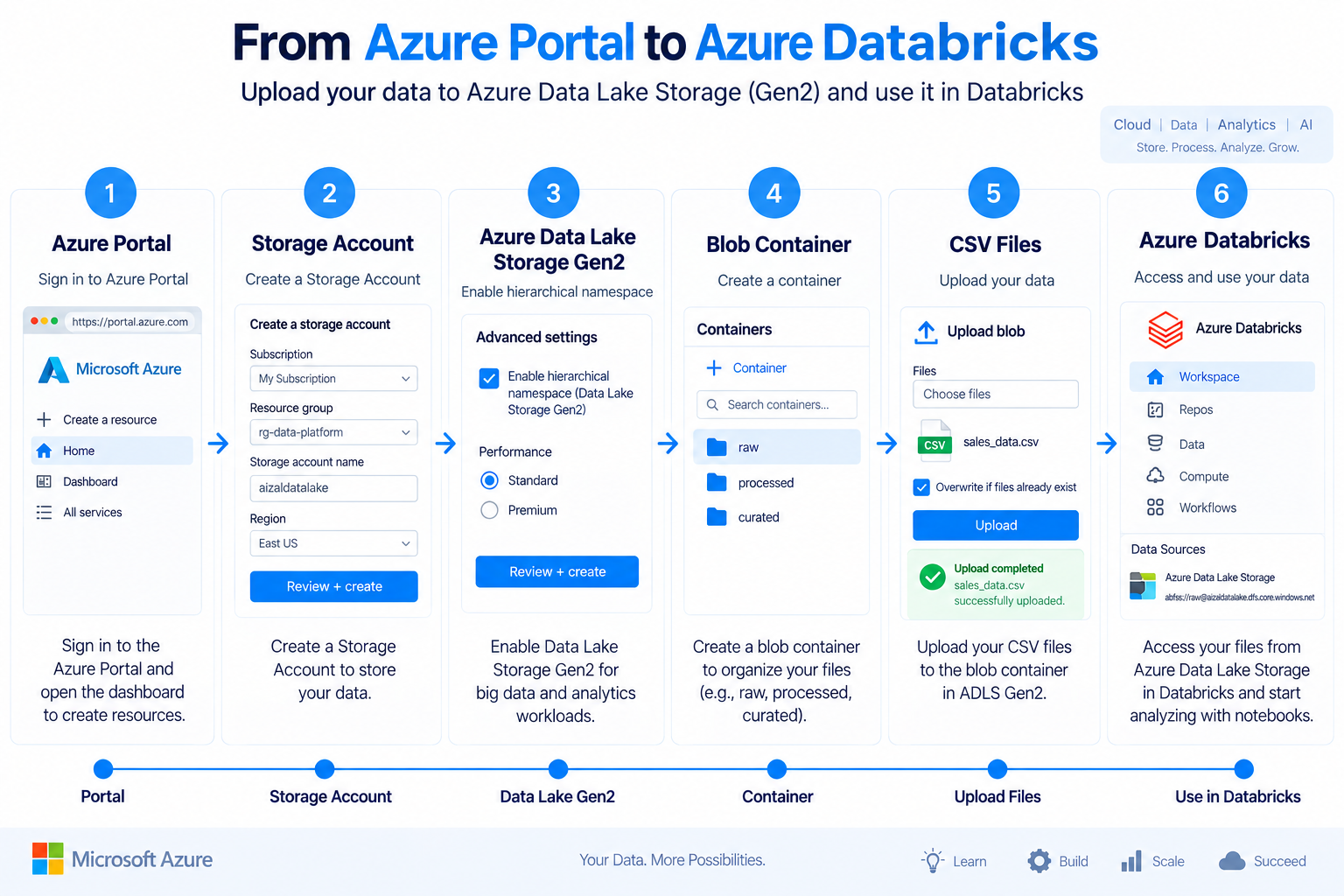
This guide walks through the complete setup process, including:
- Create Azure Storage Account
- Configure ADLS Gen2
- Enable Hierarchical Namespace
- Deploy Storage Account
- Create Blob Container
- Upload Dataset
- Verify Uploaded Files
Architecture
Step 1 — Create Azure Storage Account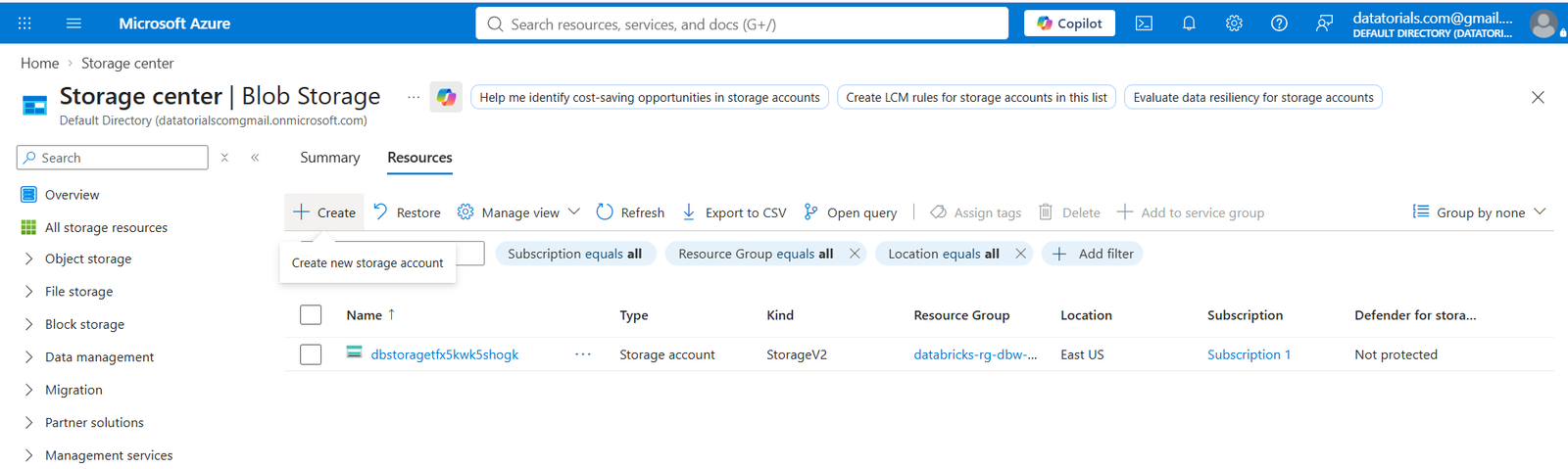
Step 2 — Configure Storage Account
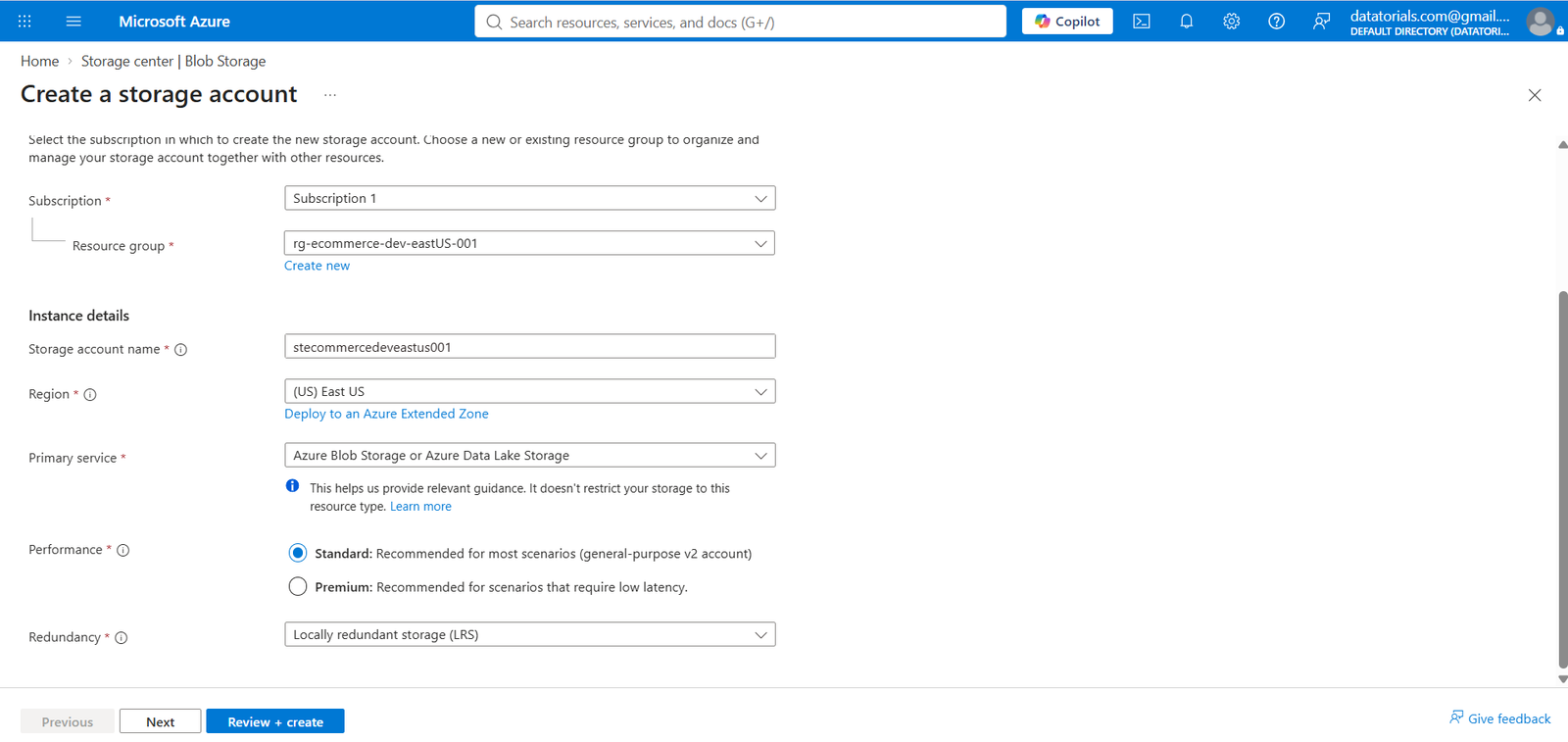
Configure:
- Subscription
- Resource Group
- Storage Account Name
- Region
- Primary Service
Configure the storage account with the following settings:
| Setting | Value |
|---|---|
| Performance | Standard |
| Region | East US |
| Primary Service | Azure Blob Storage / ADLS |
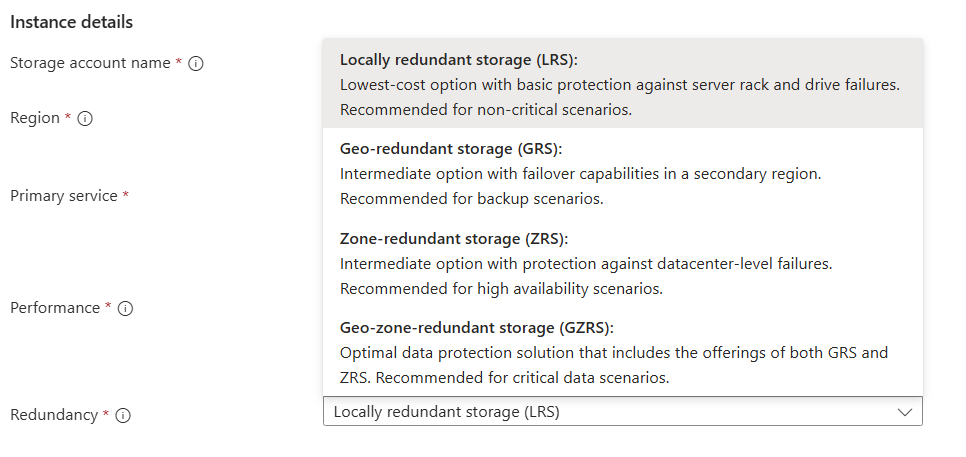
| Redundancy | Local Redundant Storage (LRS) |
Click Next
Step 3 — Enable Azure Data Lake Storage Gen2
Enable the Hierarchical Namespace.
This converts Azure Blob Storage into Azure Data Lake Storage Gen2.
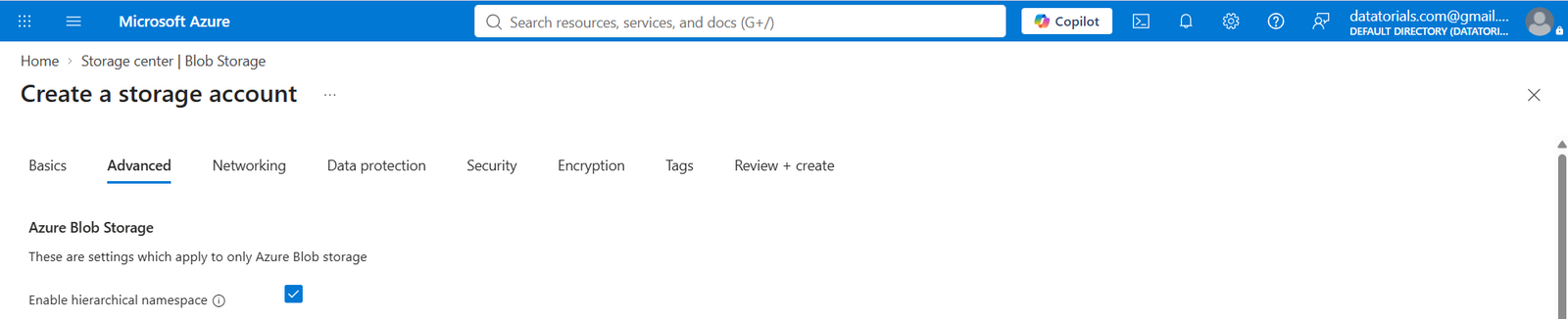
Configuration:
- ✅ Enable Hierarchical Namespace
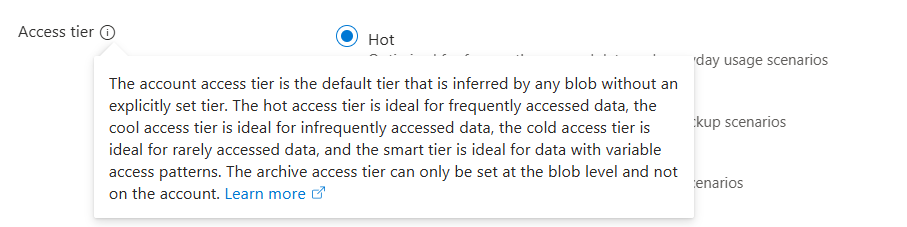
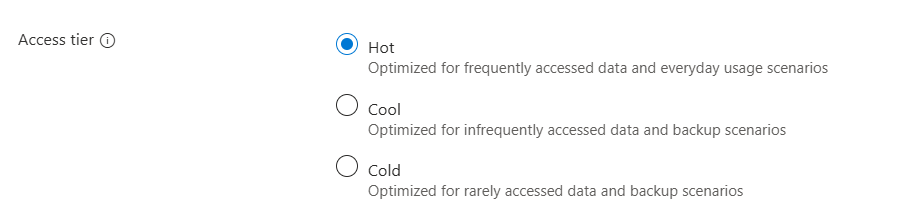
- Access Tier = Hot
Step 4 — Deploy Storage Account
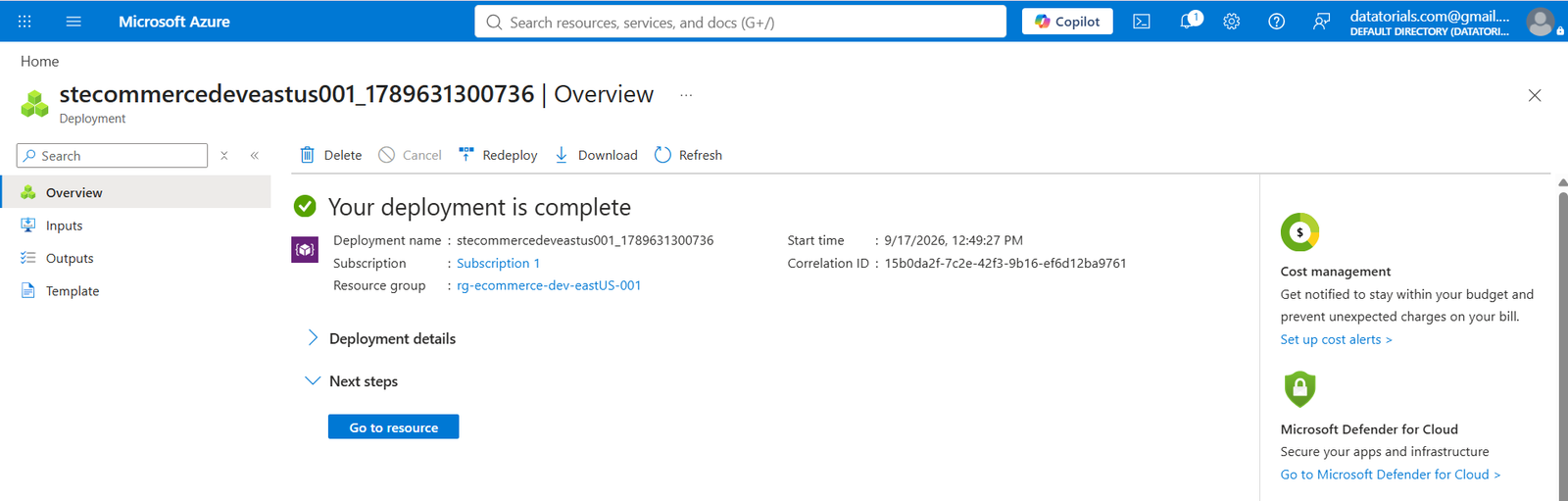
Azure validates the configuration and deploys the storage account.
After deployment completes,
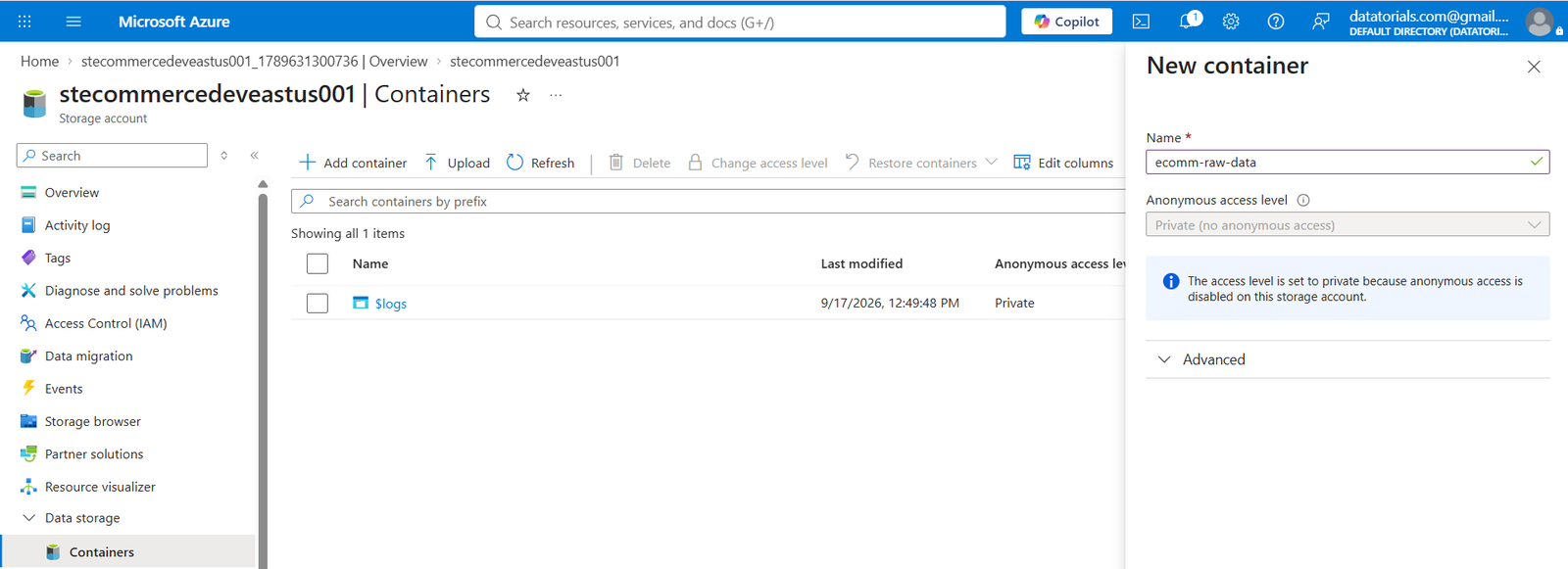
Step 5 — Create Blob Container
Container Name ecomm-raw-data
Step 6 — Open the Container
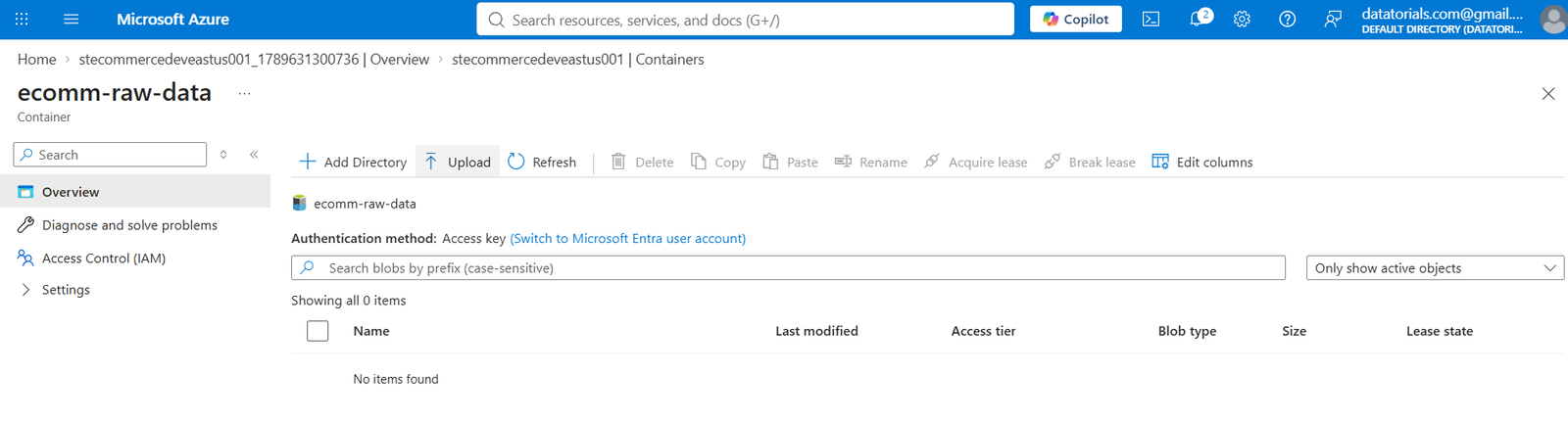
Open the newly created container.
Container ecomm-raw-data. You are now ready to upload the dataset.
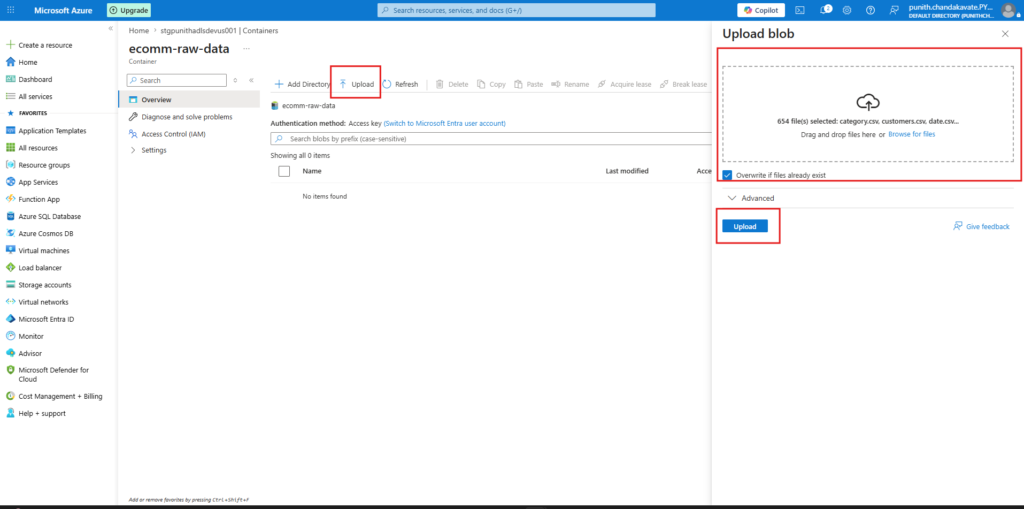
Step 7 — Upload Dataset
Drag & Drop your files or browse manually.
Example datasets
- brands.csv
- category.csv
- customers.csv
- date.csv
- products.csv
- order_items.csv
- order_returns.csv
- order_shipments.csv
Step 8 — Verify Uploaded Files
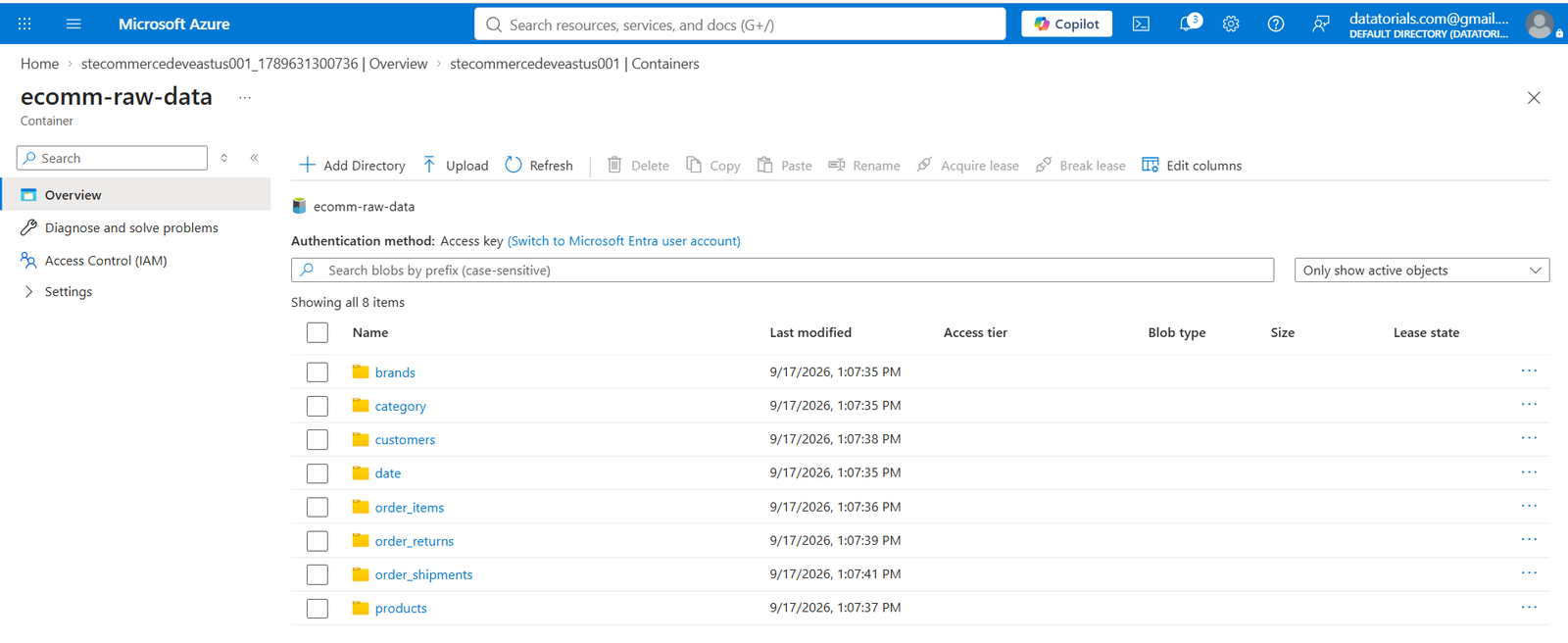
After uploading, verify that all folders/files are available.
Expected Dataset
https://freedatacamp.org/wp-content/uploads/2026/09/dataset.tar
- brands/
- category/
- customers/
- date/
- products/
- order_items/
- order_returns/
- order_shipments/
Final Data Lake Structure
Storage Account
│
└── ecomm-raw-data
    │
    ├── brands/
    ├── category/
    ├── customers/
    ├── date/
    ├── products/
    ├── order_items/
    ├── order_returns/
    └── order_shipments/
Best Practices
- Use lowercase storage account names.
- Enable Hierarchical Namespace for Data Lake workloads.
- Use meaningful container names.
- Organize datasets into separate folders.
- Enable RBAC using Microsoft Entra ID.
- Enable Soft Delete and Versioning.
- Configure Lifecycle Management policies.
- Restrict public access to containers.
- Monitor storage usage using Azure Monitor.
Key Benefits
| Feature | Description |
|---|---|
| 🚀 High Performance | Optimized for analytics workloads |
| 🔒 Secure | Microsoft Entra ID & RBAC |
| 📂 Hierarchical Namespace | Native folder support |
| 📈 Scalable | Petabyte-scale storage |
| 💰 Cost Optimized | Multiple storage tiers |
| ⚡ Analytics Ready | Integrates with Azure Databricks |