Create Raw Schema and External Volume in Unity Catalog
Overview
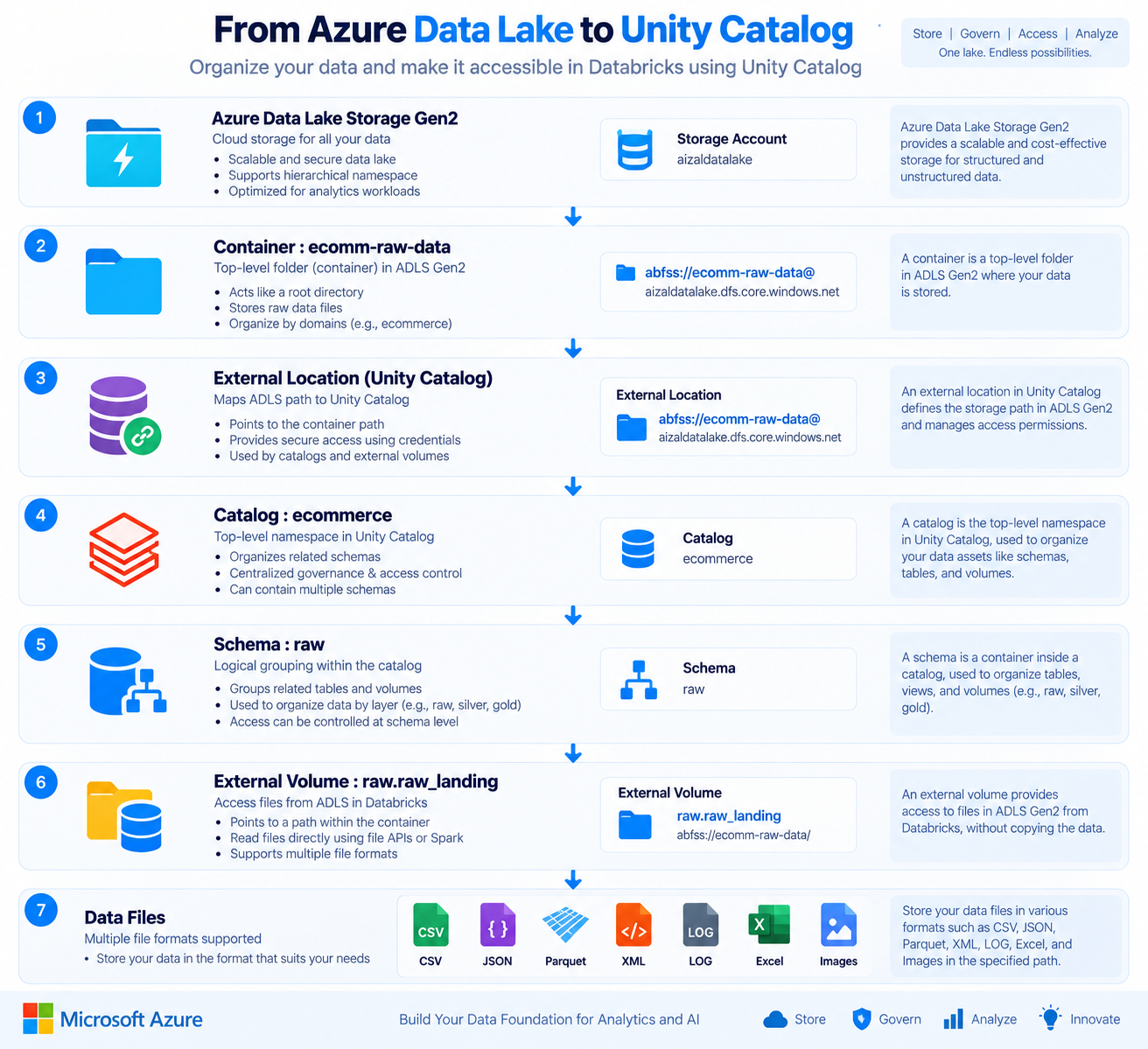
After configuring Unity Catalog, the next step is to connect your Raw Data Landing Container in Azure Data Lake Storage Gen2 to Unity Catalog.
This guide demonstrates how to:
- Create an External Location for the raw data container
- Create a Raw Schema
- Create an External Volume
- Prepare the Bronze (Raw) layer for data ingestion
The External Volume enables Unity Catalog to securely access raw datasets stored in Azure Data Lake Storage Gen2 using Managed Identity.
Learning Objectives
After completing this guide, you will be able to:
- Connect a Raw Data container with Unity Catalog
- Create an External Location
- Create a Raw Schema
- Create an External Volume
- Store structured, semi-structured, and unstructured files securely
- Prepare the Bronze Layer for ETL pipelines
Architecture
Raw Landing Zone
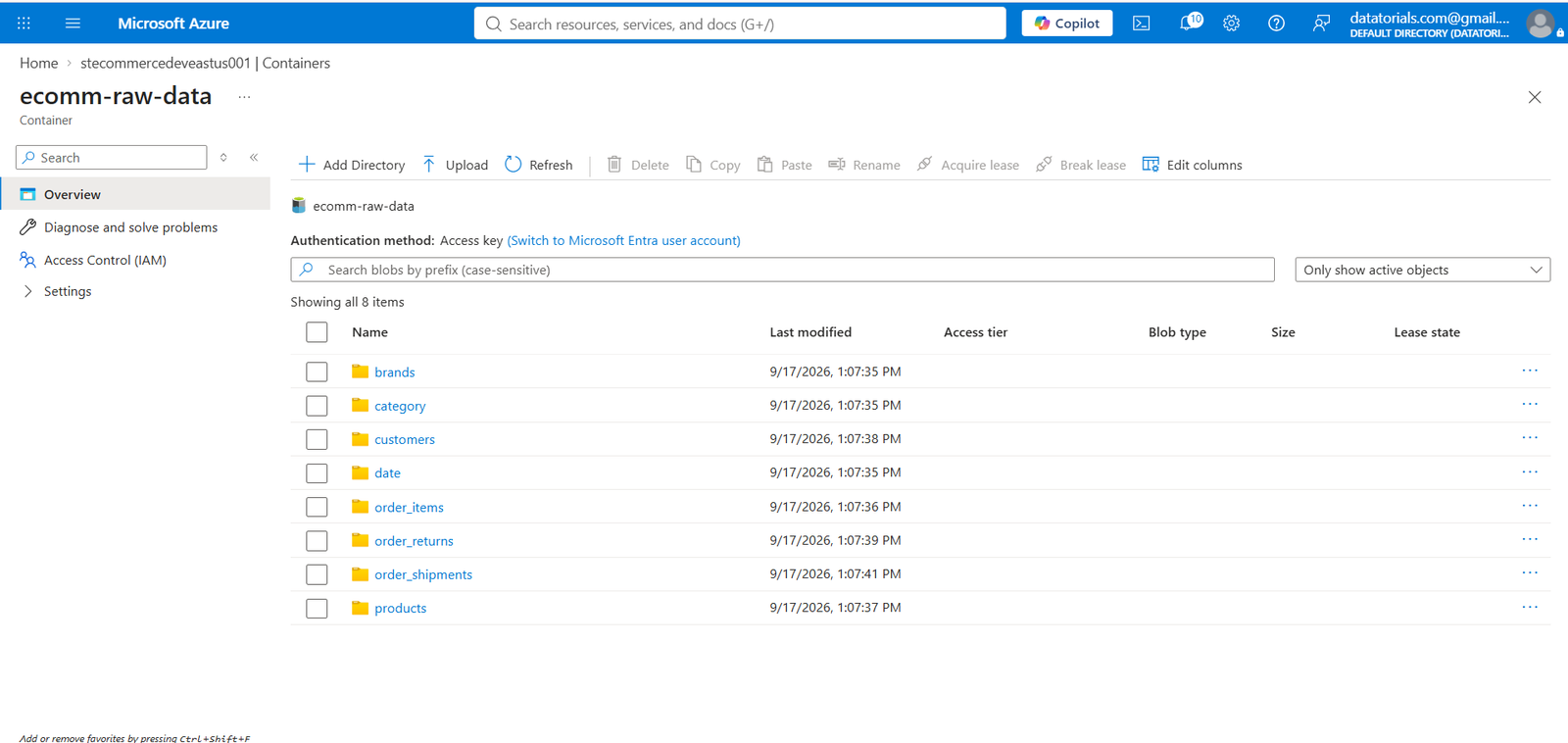
The ecomm-raw-data container acts as the landing zone for all source system data.
Files are stored in their original format before any transformation.
Typical files include:
- CSV
- JSON
- Parquet
- XML
- TXT
- LOG
- Excel
- Images
- Other binary files
Example structure:
ecomm-raw-data
│
├── customers/
│      ├── customers.csv
│
├── orders/
│      ├── orders.csv
│
├── products/
│      ├── products.json
│
├── inventory/
│      ├── inventory.parquet
│
├── application_logs/
│      ├── app.log
│
└── images/
       ├── product001.jpg
Step 1 — Create an External Location
Navigate to:
Catalog
   ↓
External Locations
   ↓
Create External Location
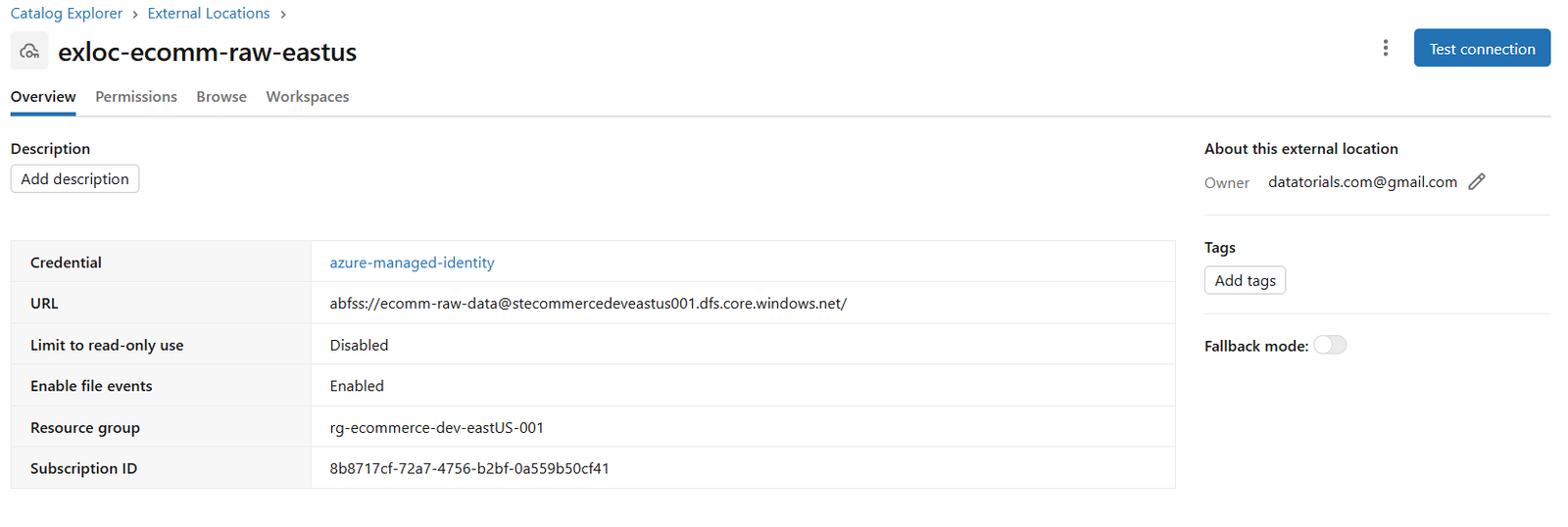
Configure the External Location using the following values.
| Property | Value |
|---|---|
| External Location Name | exloc-ecomm-raw-eastus |
| Storage Type | Azure Data Lake Storage |
| URL | abfss://ecomm-raw-data@stgpunithadlsdevus001.dfs.core.windows.net |
| Storage Credential | azure-managed-identity |
After entering all the required information, click Create.
Why create an External Location?
An External Location securely maps the ecomm-raw-data container to Unity Catalog.
Instead of using Storage Account Keys, Unity Catalog authenticates using the configured Managed Identity through the Storage Credential.
This enables secure, governed access to raw files for notebooks, jobs, and ETL pipelines.
Step 2 — Create Raw Schema and External Volume
Open a SQL Notebook and execute the following commands.
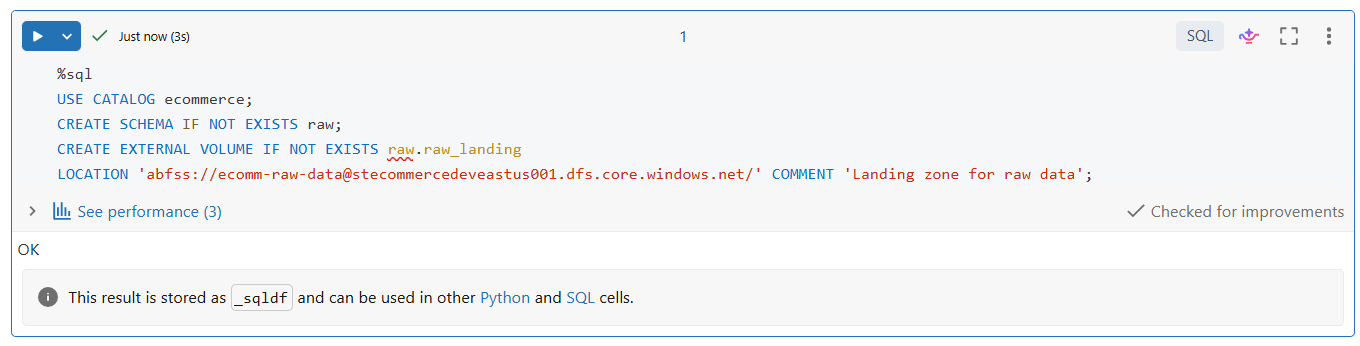
%sql
USE CATALOG ecommerce;
CREATE SCHEMA IF NOT EXISTS raw;
CREATE EXTERNAL VOLUME IF NOT EXISTS raw.raw_landing
LOCATION 'abfss://ecomm-raw-data@stecommercedeveastus001.dfs.core.windows.net/' COMMENT 'Landing zone for raw data'; 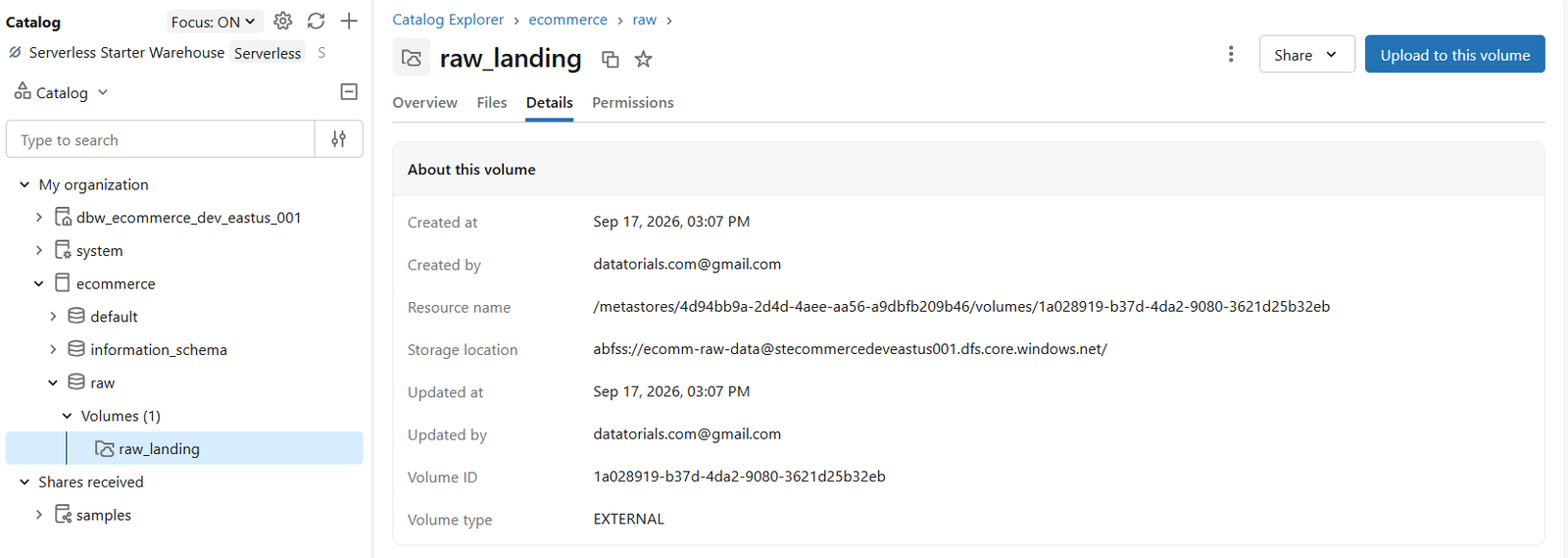
SQL Explanation
Select the Catalog
USE CATALOG ecommerce;
Sets ecommerce as the active Unity Catalog.
Create the Raw Schema
CREATE SCHEMA IF NOT EXISTS raw;
Creates the raw schema if it does not already exist.
The raw schema represents the Bronze Layer of the Medallion Architecture.
Create the External Volume
CREATE EXTERNAL VOLUME IF NOT EXISTS raw.raw_landing
LOCATION 'abfss://ecomm-raw-data@stgpunithadlsdevus001.dfs.core.windows.net/'
COMMENT 'Landing zone for raw data';
Creates an External Volume named raw_landing inside the raw schema.
The volume points directly to the ecomm-raw-data container in Azure Data Lake Storage Gen2.
This location stores incoming files exactly as they arrive from source systems.
After execution, the notebook should display:
OK
This confirms that the schema and external volume have been created successfully.
Databricks Notebook
This guide is implemented using the following Databricks notebook.
| Notebook | Description |
|---|---|
| 📘 Setup Raw Schema | Creates the Raw Schema |
| 📘 Create external volume | Creates External Volume for the Bronze layer. |
Notebook Overview
The notebook performs the following tasks:
- Select Unity Catalog
- Create the Raw Schema
- Create the External Volume
- Configure the Bronze Landing Zone
- Validate successful execution
Final Resource Hierarchy
Azure Subscription
│
├── Azure Databricks Workspace
│
├── Unity Catalog
│      │
│      └── ecommerce
│              │
│              └── raw
│                      │
│                      └── raw_landing
│
├── External Location
│      │
│      └── exloc-ecomm-raw-eastus
│
└── Azure Storage Account
        │
        └── ecomm-raw-data
                │
                ├── CSV
                ├── JSON
                ├── LOG
                ├── XML
                ├── Parquet
                ├── Excel
                └── Images
Data Flow
Source Systems
      │
      ▼
CSV / JSON / XML / LOG / Images
      │
      ▼
Azure Data Lake Storage Gen2
(Container : ecomm-raw-data)
      │
      ▼
External Location
      │
      ▼
Unity Catalog
      │
      ▼
Schema : raw
      │
      ▼
External Volume : raw_landing
      │
      ▼
Bronze Layer
Verification Checklist
| Component | Status |
|---|---|
| External Location Created | ✅ |
| Storage Credential Connected | ✅ |
| Raw Schema Created | ✅ |
| External Volume Created | ✅ |
| SQL Executed Successfully | ✅ |
| Raw Landing Zone Ready | ✅ |
Best Practices
- Use a dedicated container for raw data.
- Store source files in their original format.
- Do not modify raw files.
- Organize files by source system.
- Use Managed Identity instead of Storage Account Keys.
- Apply Unity Catalog permissions to control access.
- Maintain separate Bronze, Silver, and Gold layers.
- Use descriptive names for schemas and volumes.