Setup Unity Catalog with Azure Managed Identity & External Location
Overview
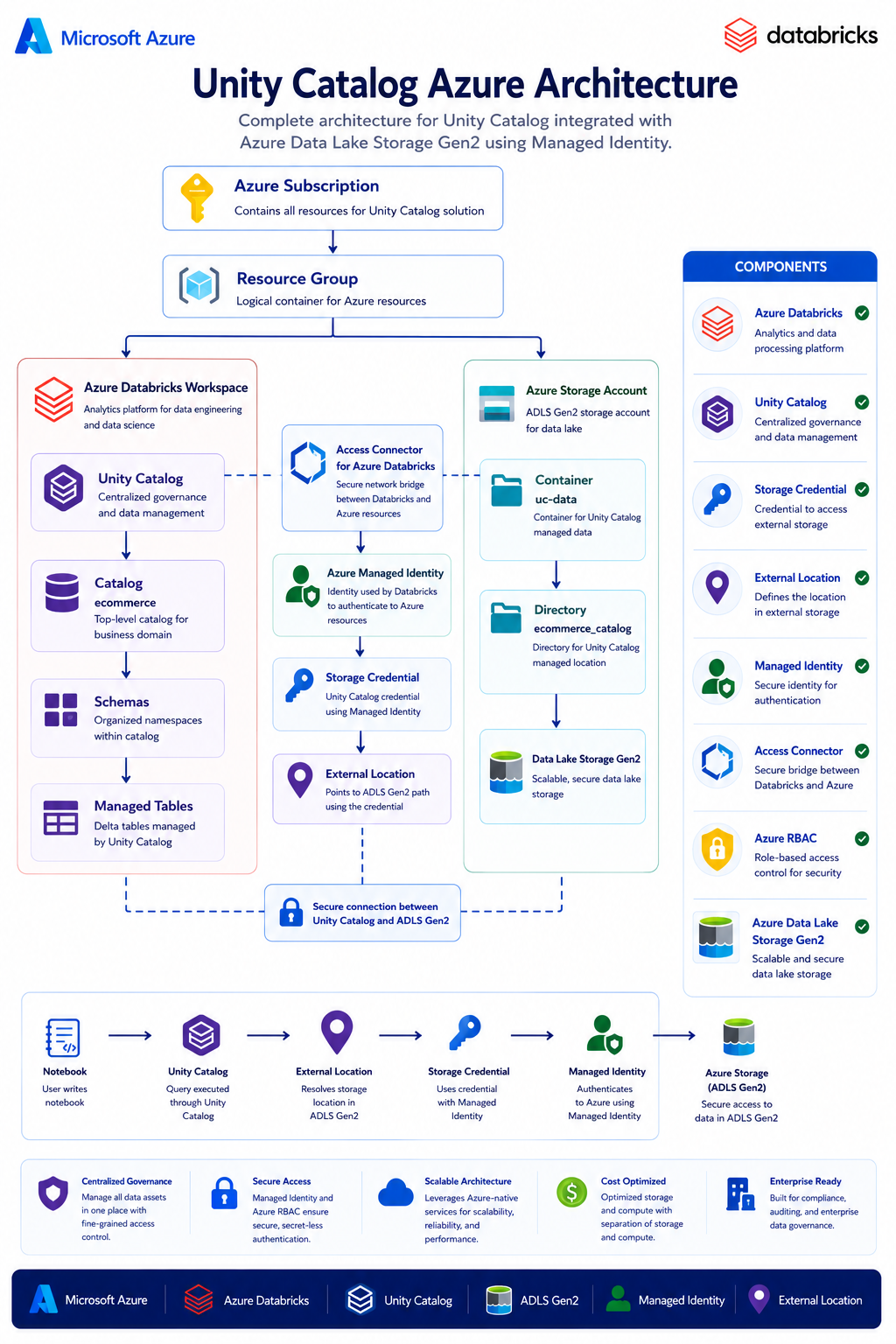
This guide demonstrates how to configure Azure Databricks Unity Catalog using Azure Data Lake Storage Gen2 (ADLS Gen2) with Azure Managed Identity Authentication.
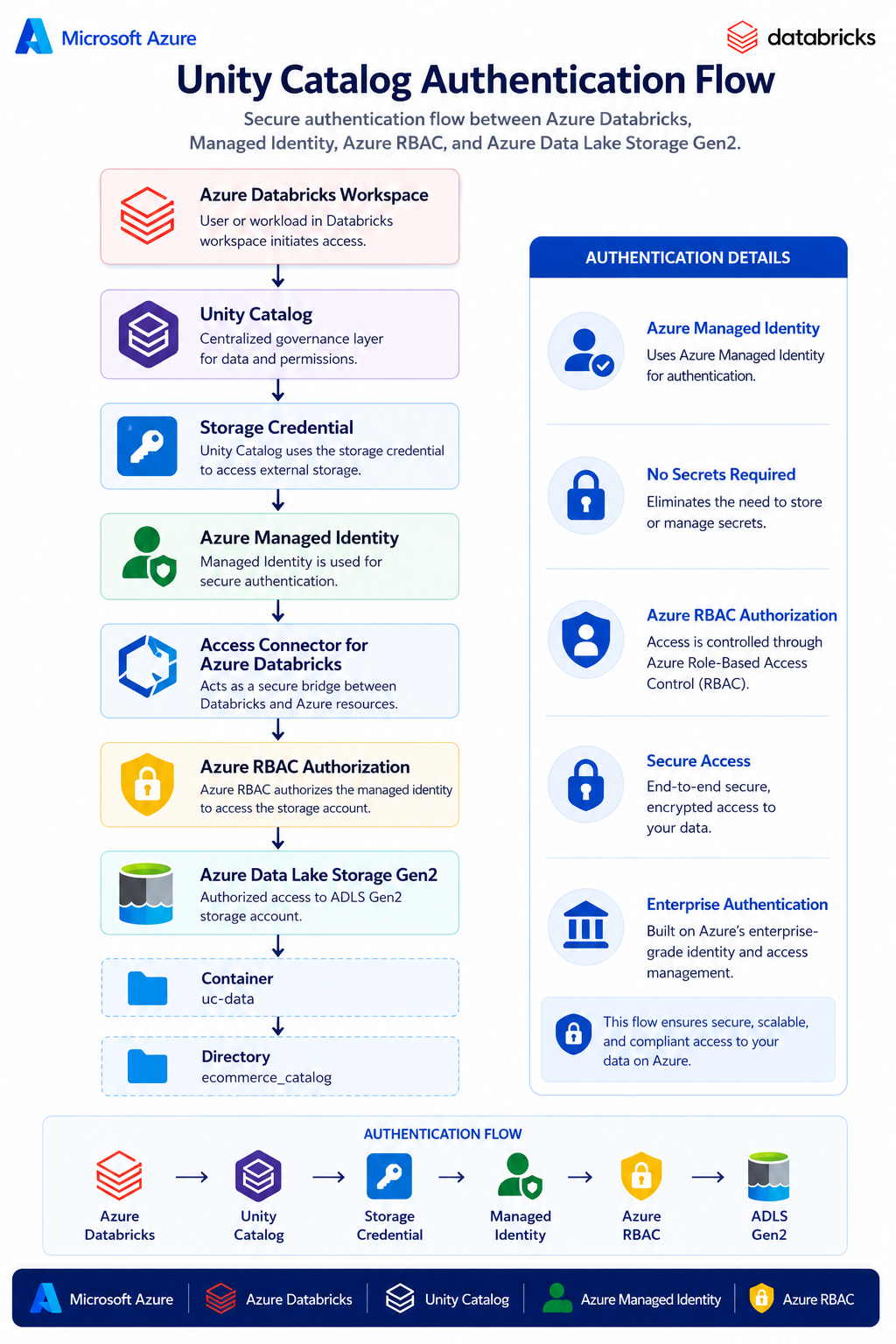
Instead of using storage account access keys or service principals, this approach leverages an Azure Databricks Access Connector with Managed Identity, providing secure and scalable access to Azure Storage.
By the end of this guide, you will have a fully functional Unity Catalog environment that uses Azure Managed Identity for secure authentication.
Learning Objectives
After completing this guide, you will be able to:
- Create an Azure Storage Container for Unity Catalog
- Create a managed storage directory
- Deploy Azure Databricks Access Connector
- Configure Managed Identity
- Assign Azure RBAC permissions
- Create a Storage Credential
- Create an External Location
- Configure Unity Catalog
- Create Catalogs backed by ADLS Gen2
Authentication Flow
Prerequisites
Before starting, ensure you have:
- Azure Subscription
- Azure Databricks Workspace
- Unity Catalog Enabled
- Azure Data Lake Storage Gen2
- Owner or Contributor access
- Permission to create Azure resources
- SQL Warehouse or Cluster running
Step 1 — Open Unity Catalog
Open your Azure Databricks Workspace and navigate to Catalog Explorer.
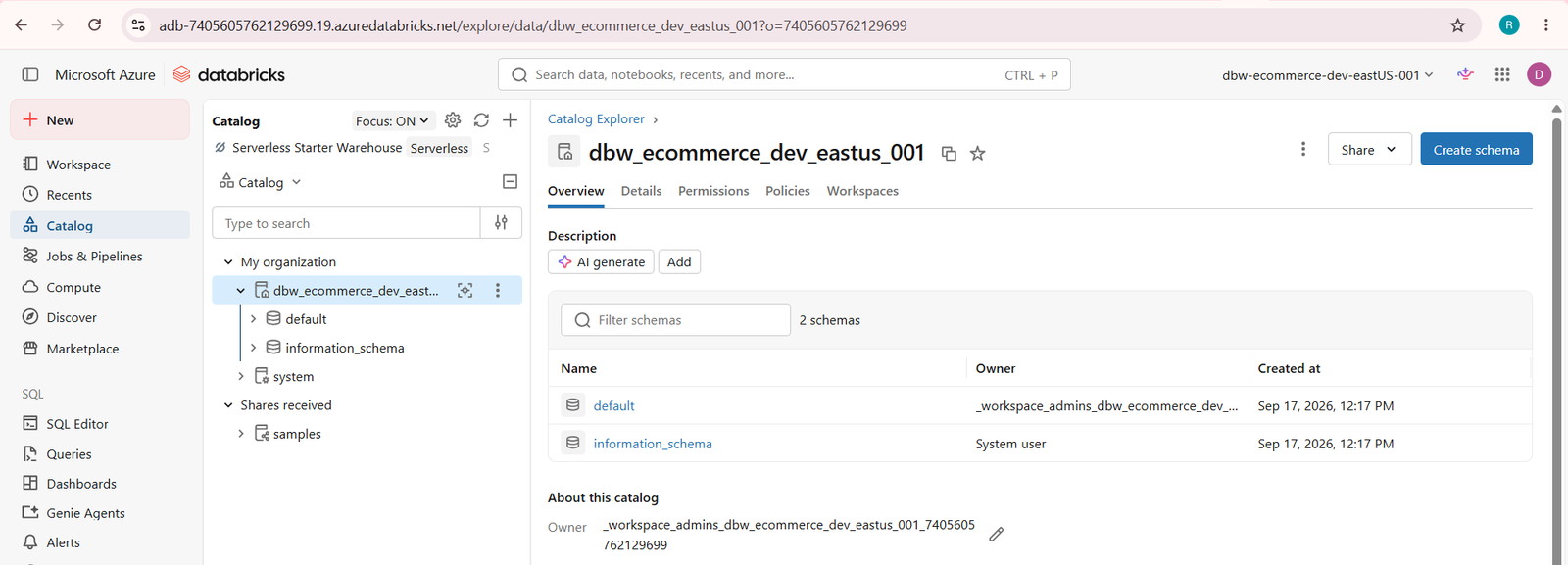
Step 2 — Create a New Catalog
Click Create → Catalog to start creating a new Unity Catalog.
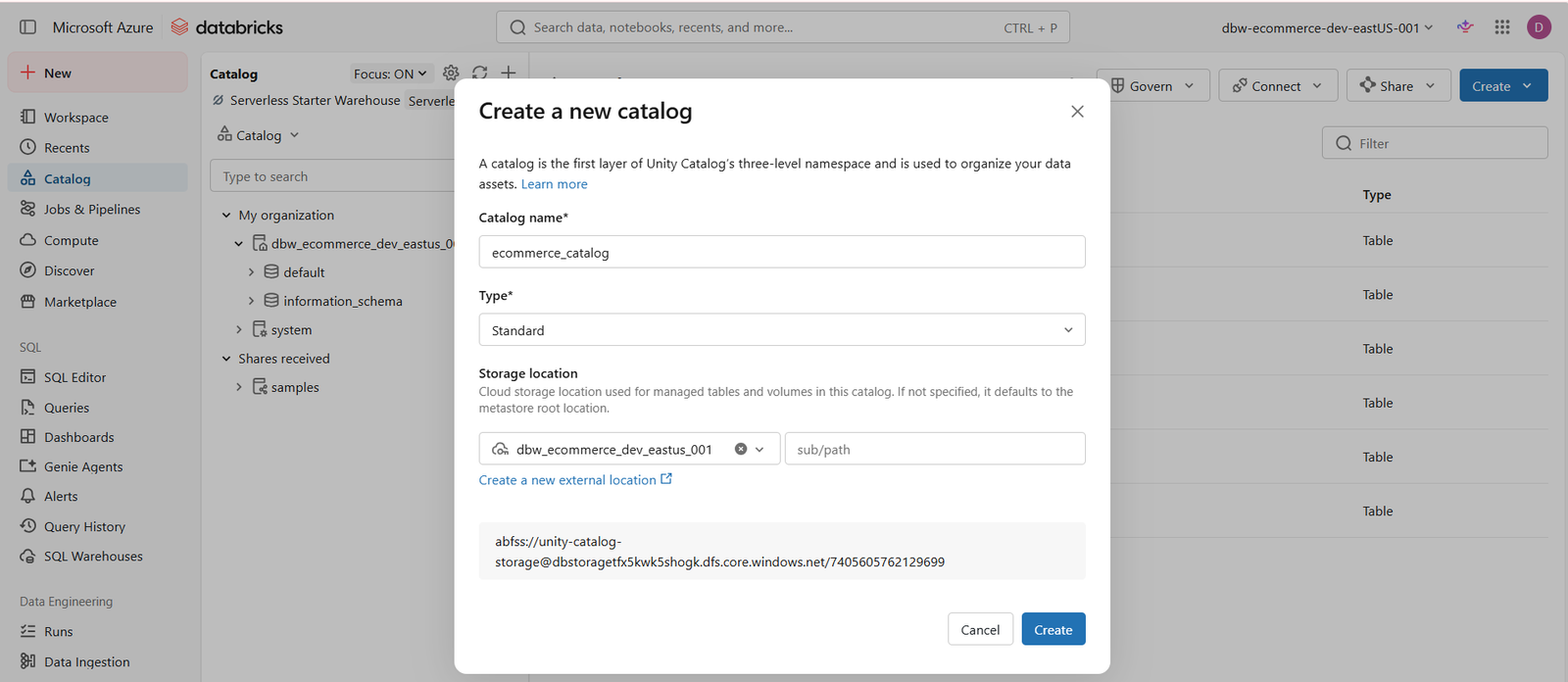
Step 3 — Storage Location Error
If a managed storage location is not configured, Databricks displays the following error.
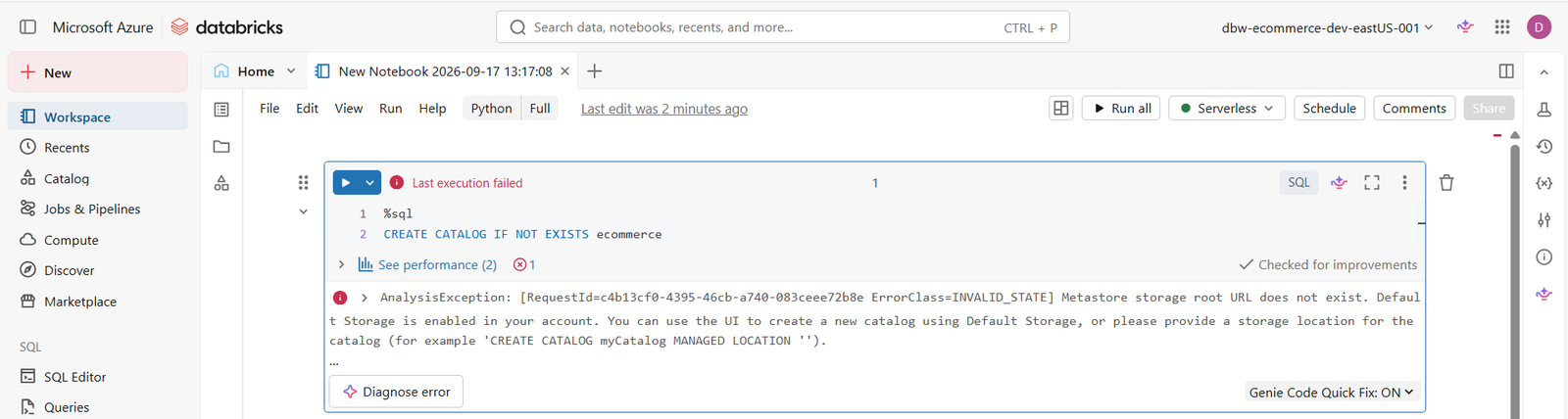
Note: Configure a Storage Credential and External Location before creating the catalog.
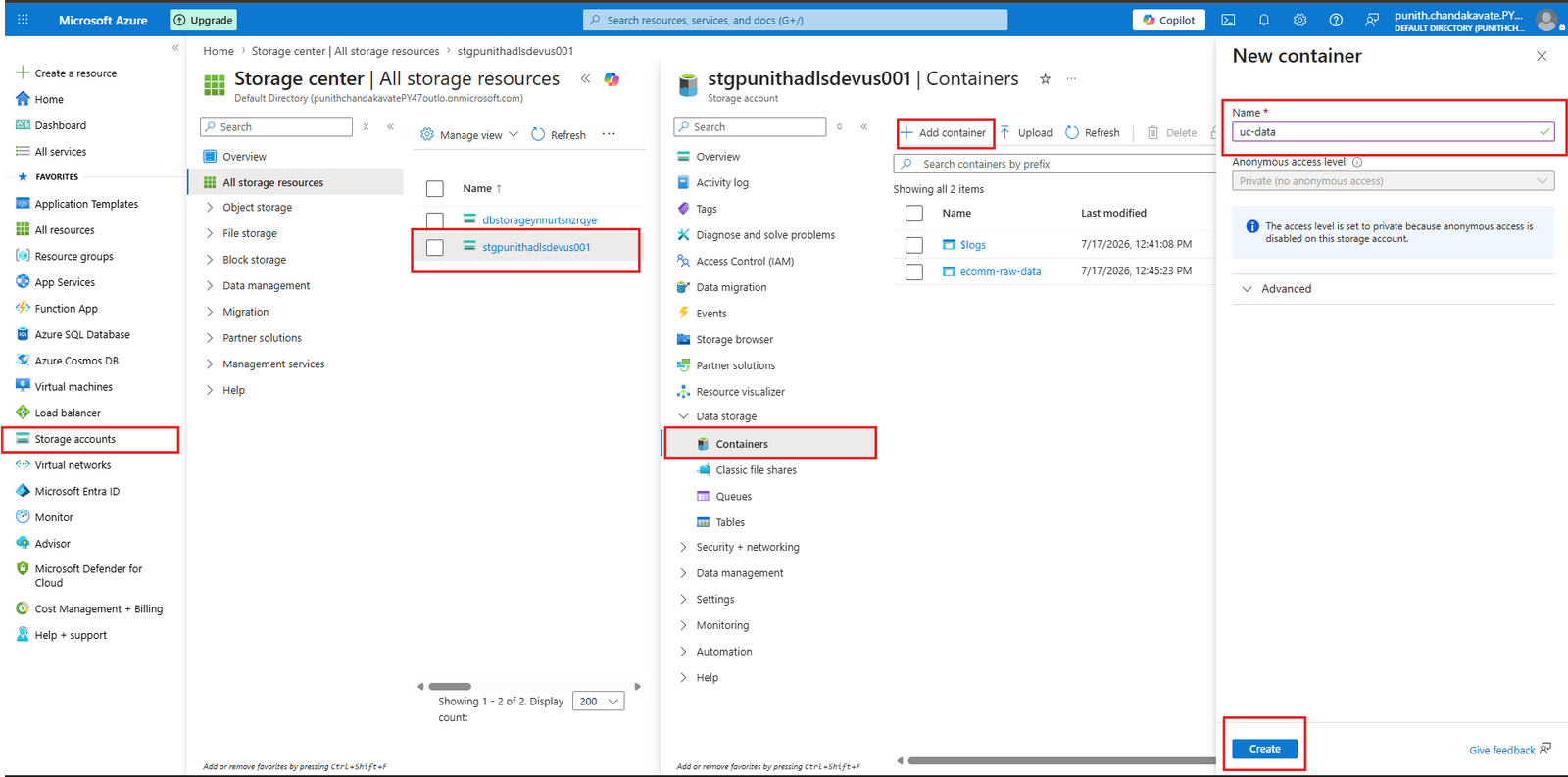
Step 4 — Create Storage Container
Navigate to your Azure Storage Account and create a new container.
Example: uc-data
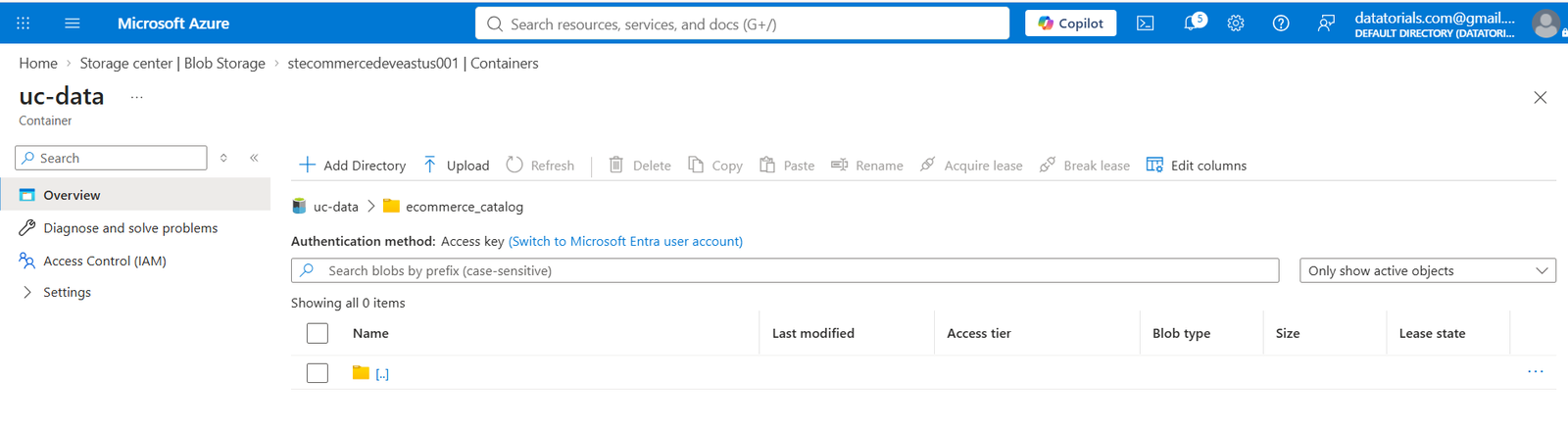
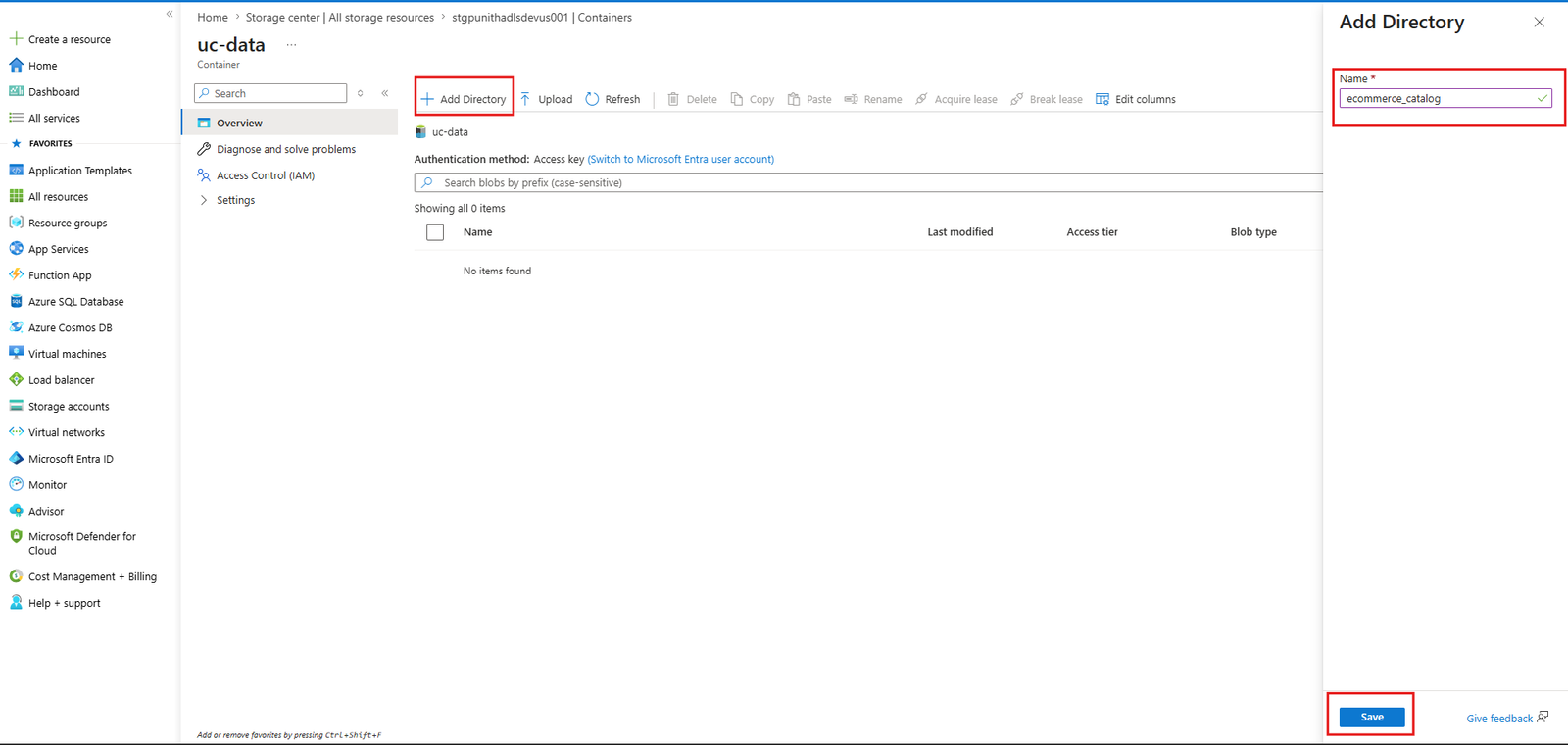
Inside the container, create a directory that will be used as the managed storage location.
Example: ecommerce_catalog
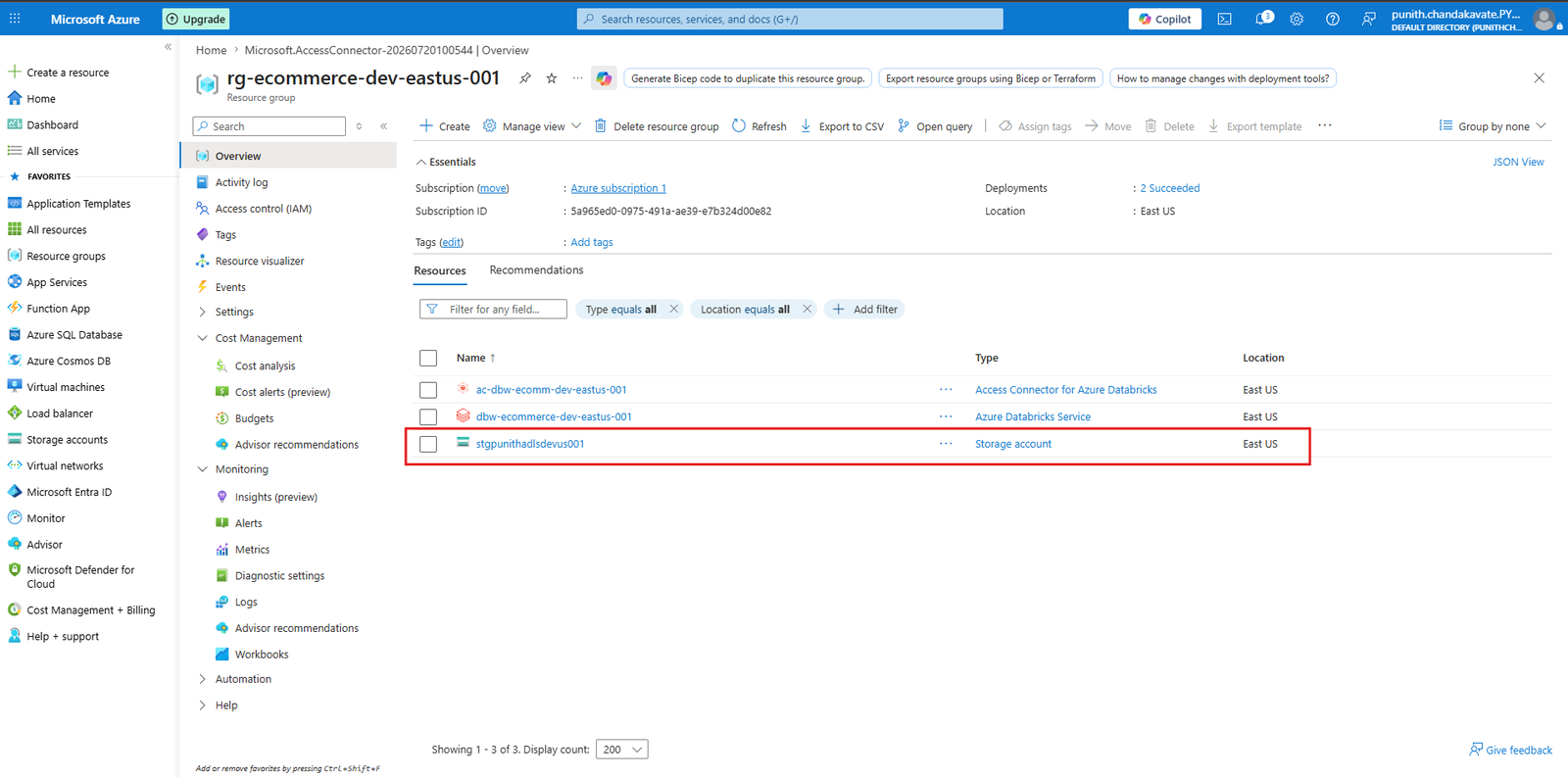
Step 6 — Open Resource Group
Navigate to the Azure Resource Group where your Databricks resources are deployed.
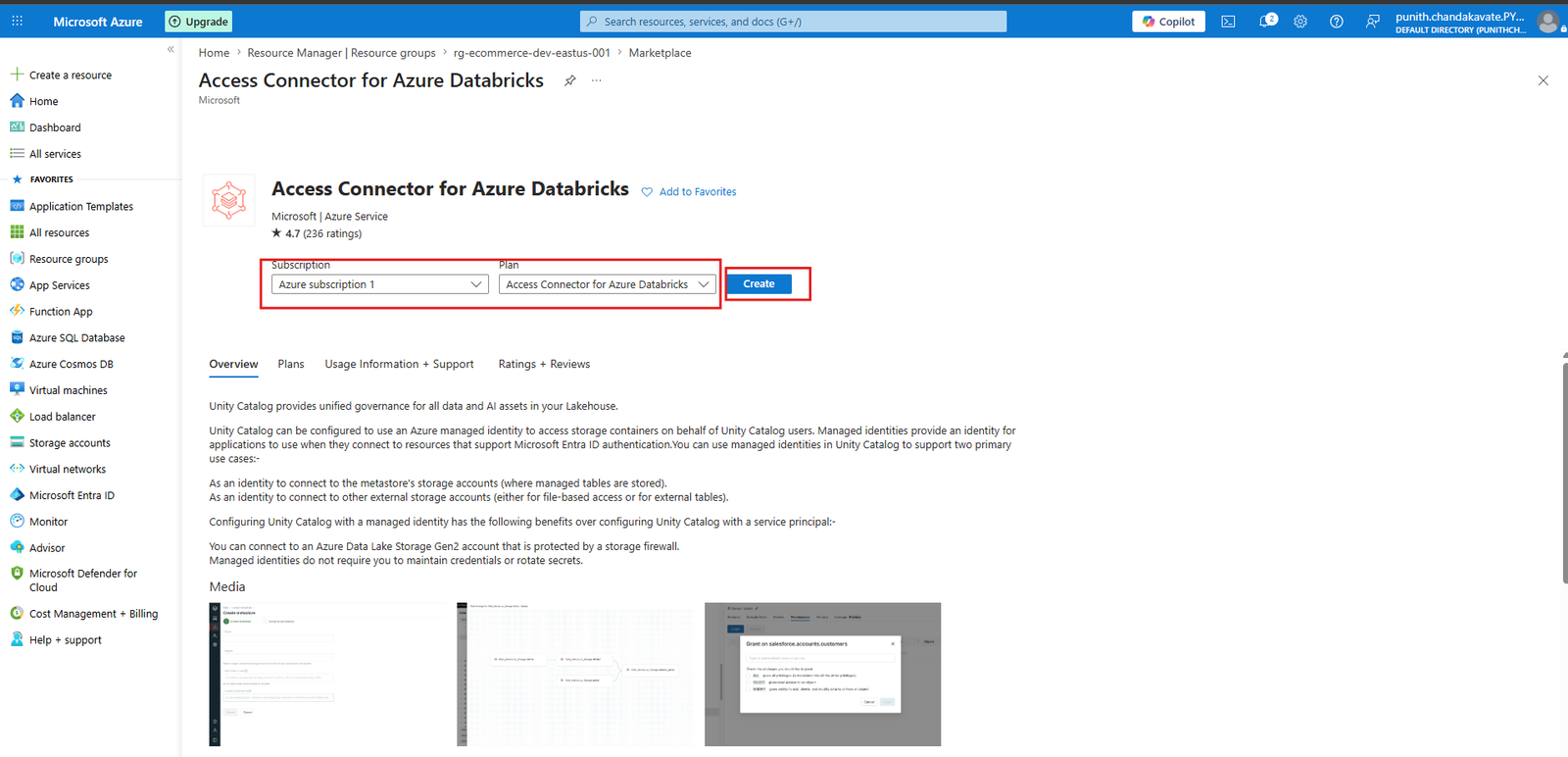
Step 7 — Search Access Connector
Search for Access Connector for Azure Databricks from the Azure Marketplace.

Step 8 — Create Azure Databricks Access Connector
Provide the required information such as Subscription, Resource Group, Name, and Region.
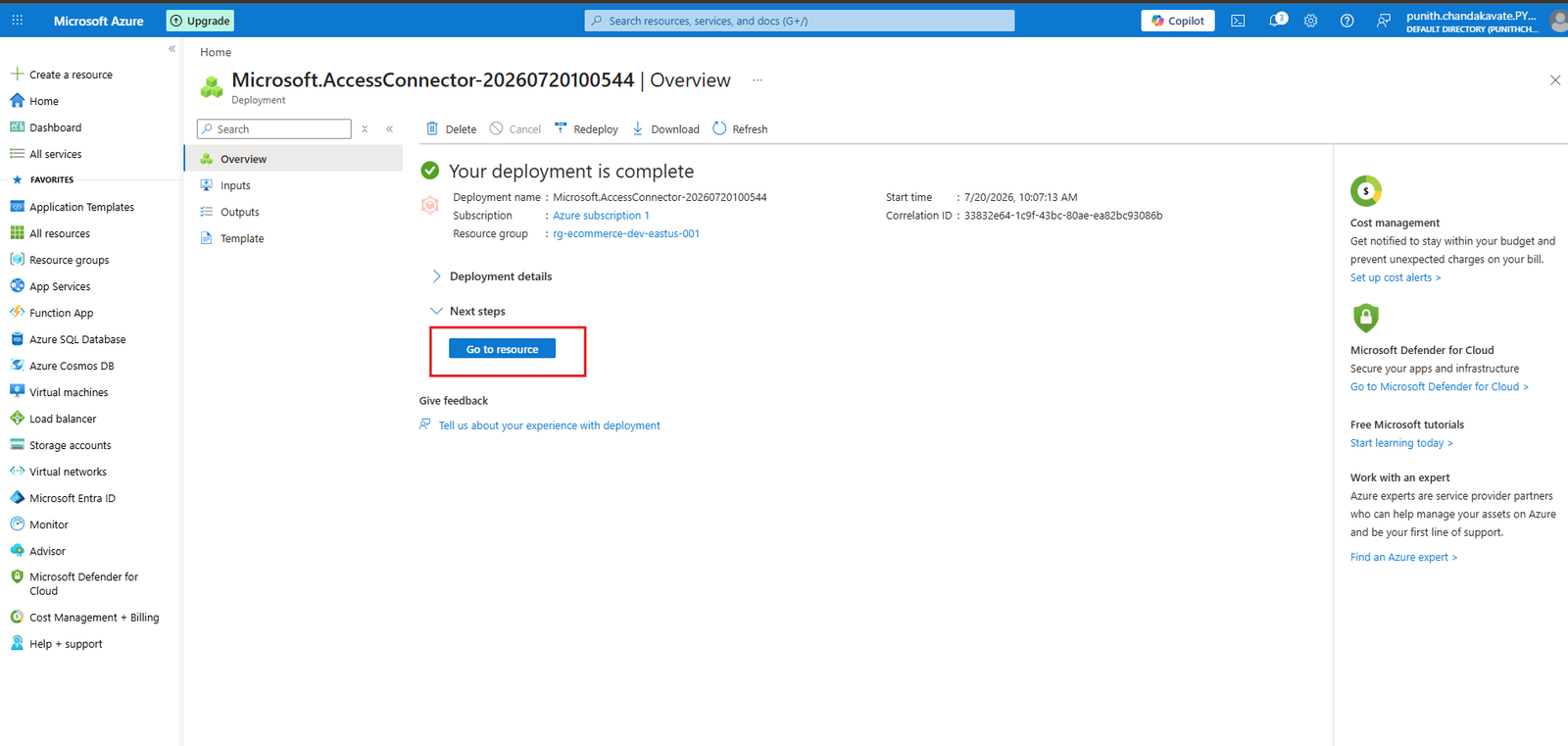
Step 9 — Access Connector Deployment Completed
Wait until the deployment is completed successfully.
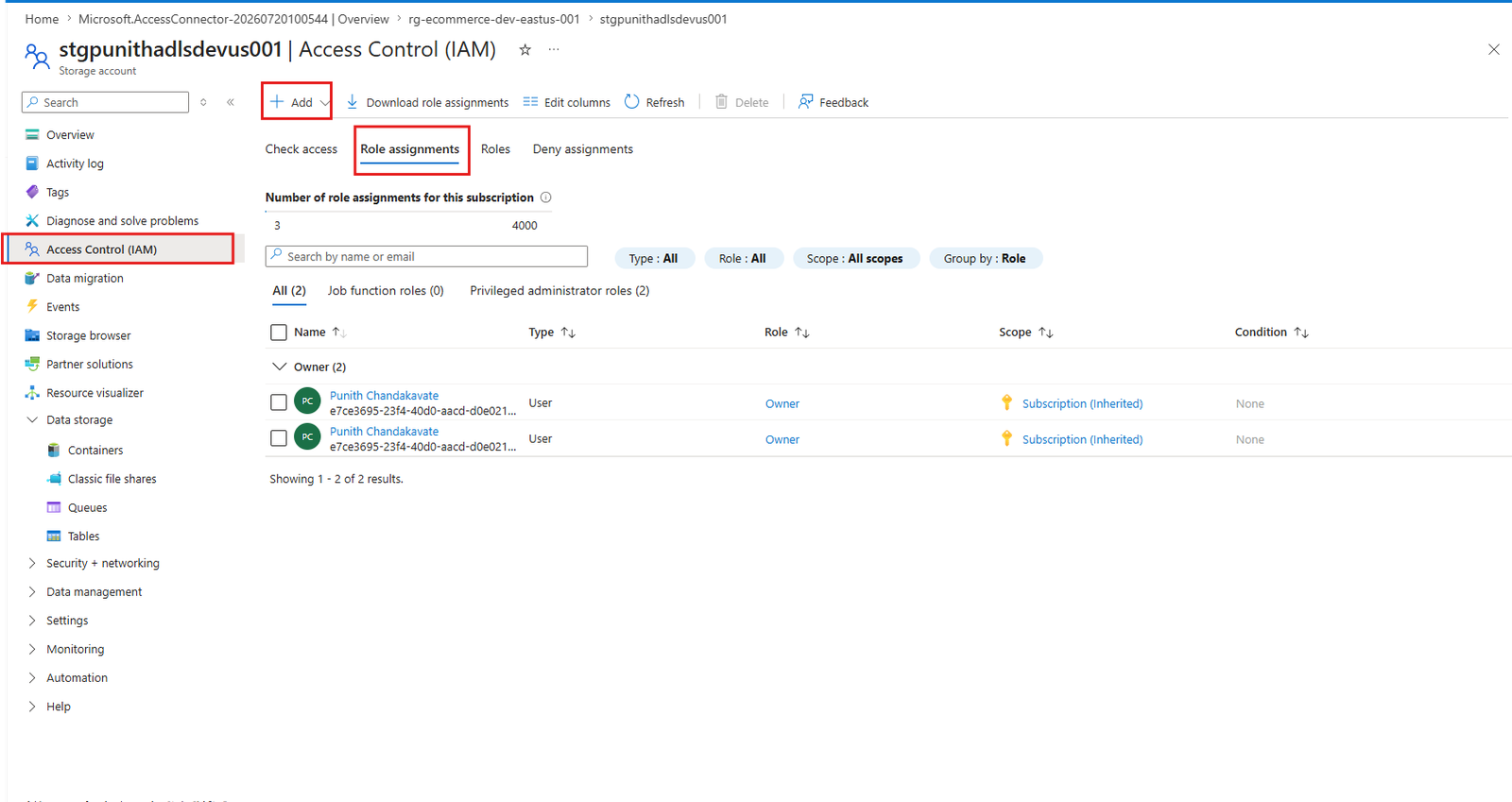
Step 10 — Open Storage Account IAM
Open the Storage Account and navigate to Access Control (IAM).
Step 11 — Add Role Assignment
Click Add → Add Role Assignment.
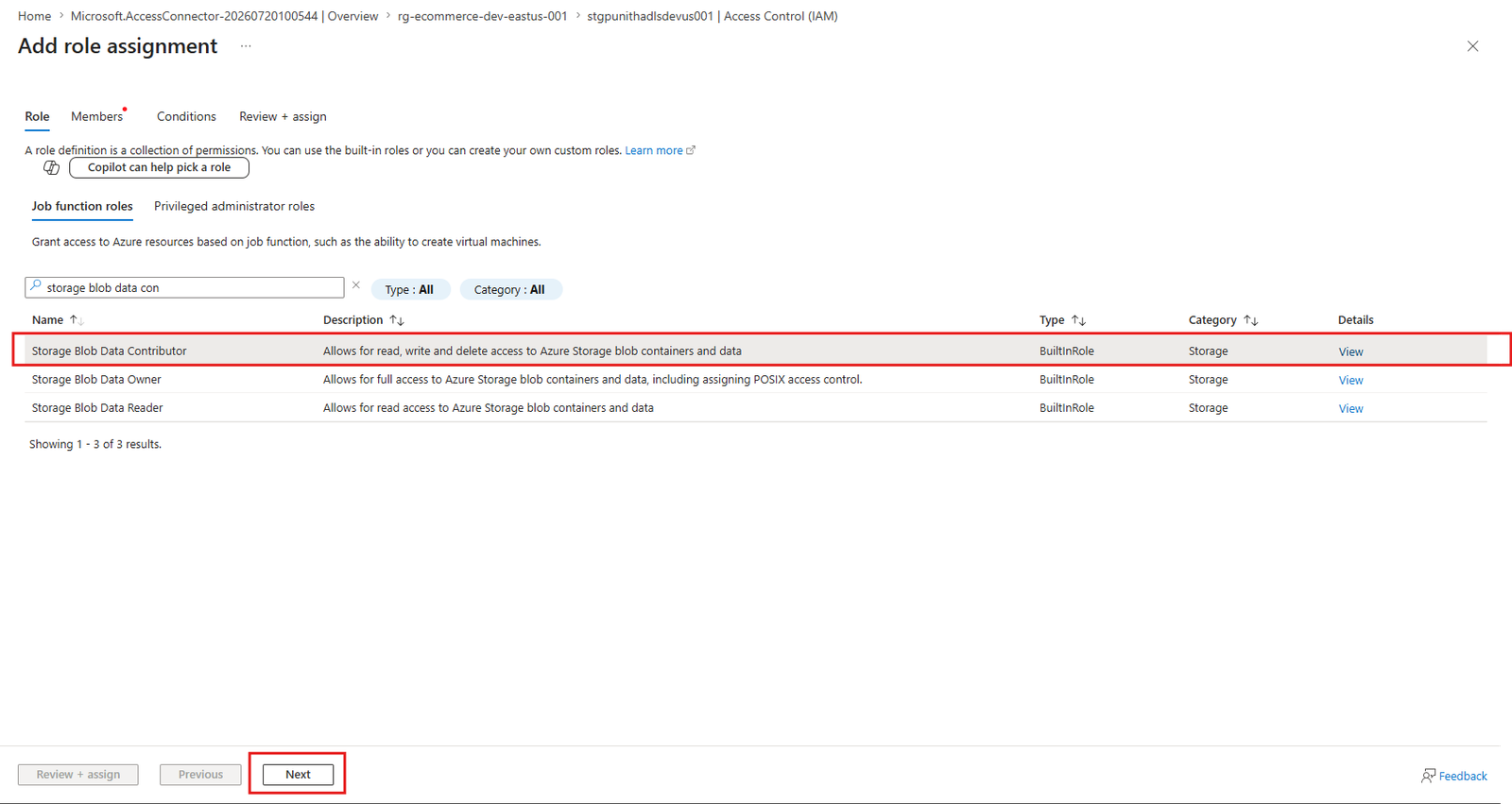
Step 12 — Select Storage Blob Data Contributor
Choose the Storage Blob Data Contributor role.
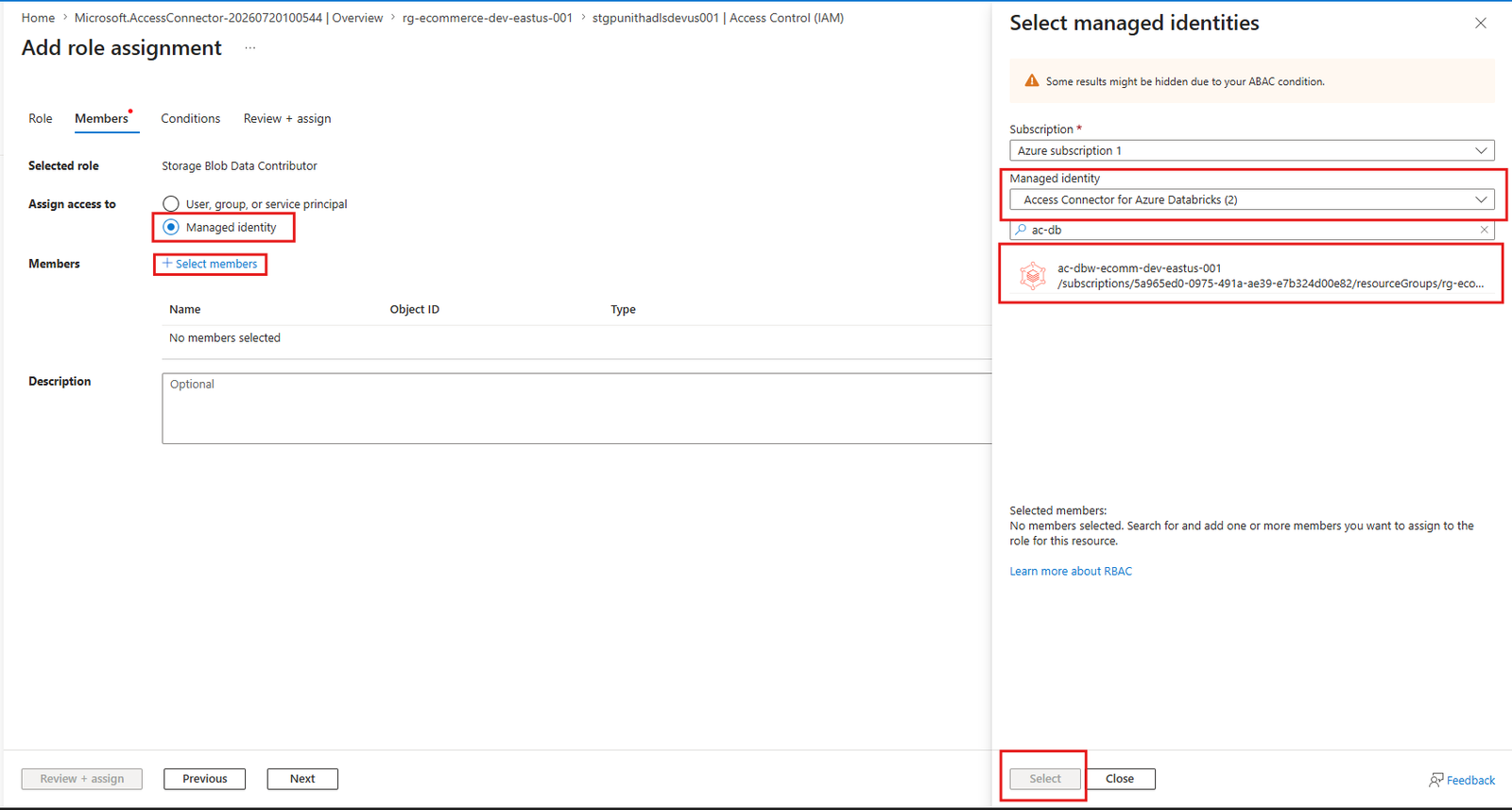
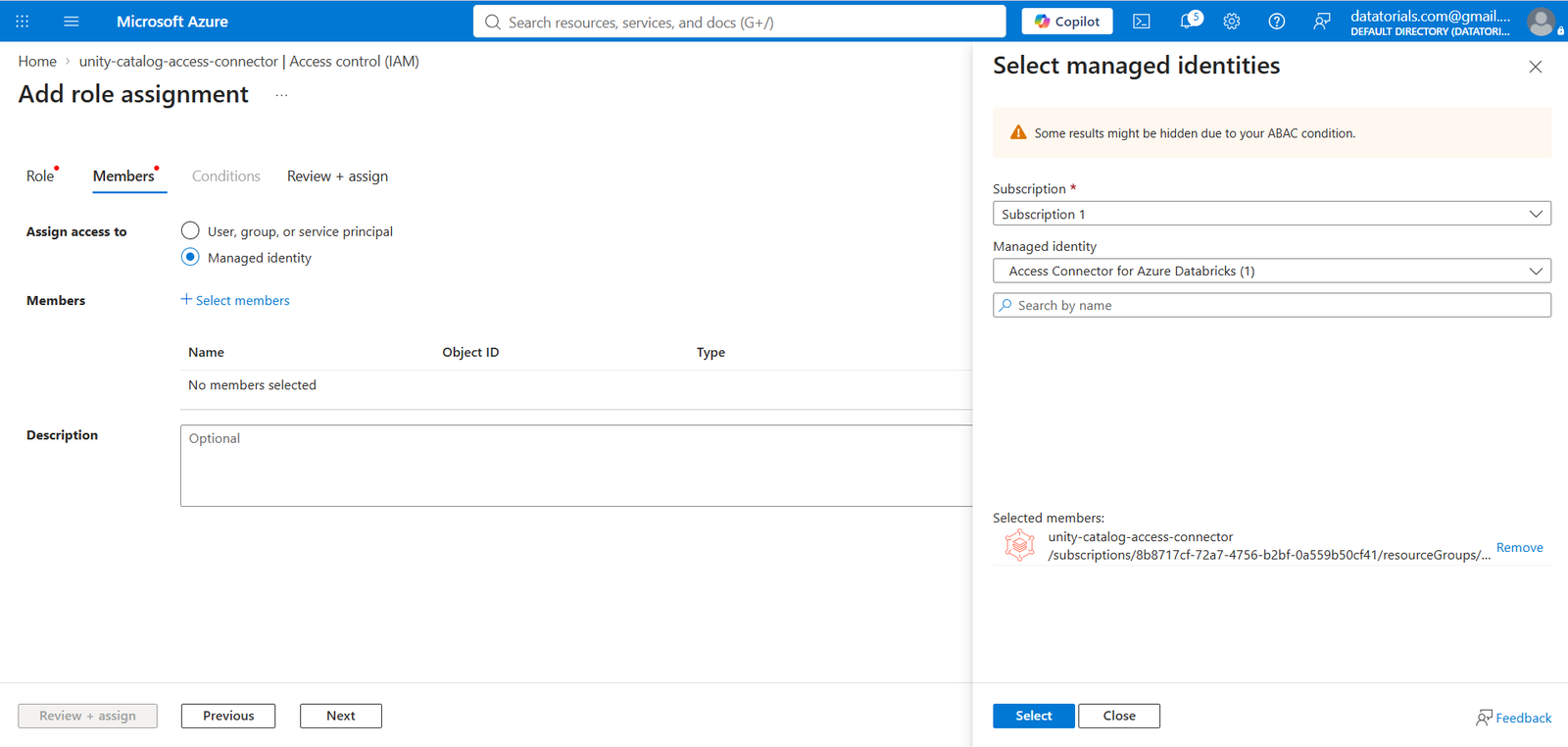
Step 13 — Select Managed Identity
Choose Managed Identity and select the Azure Databricks Access Connector.
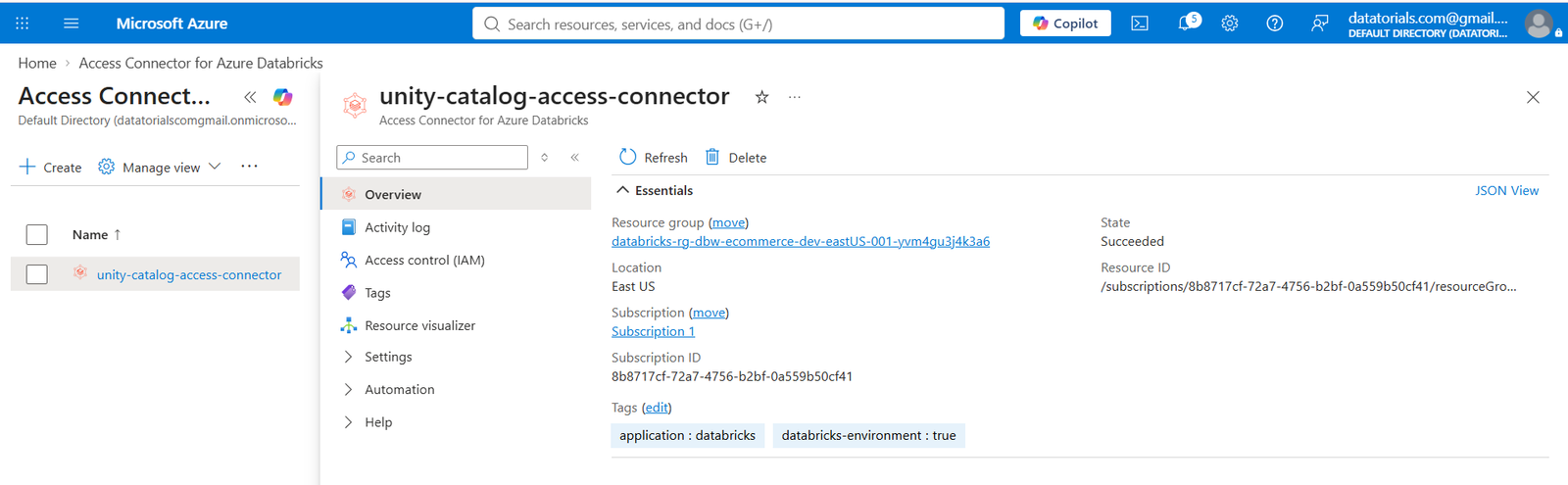
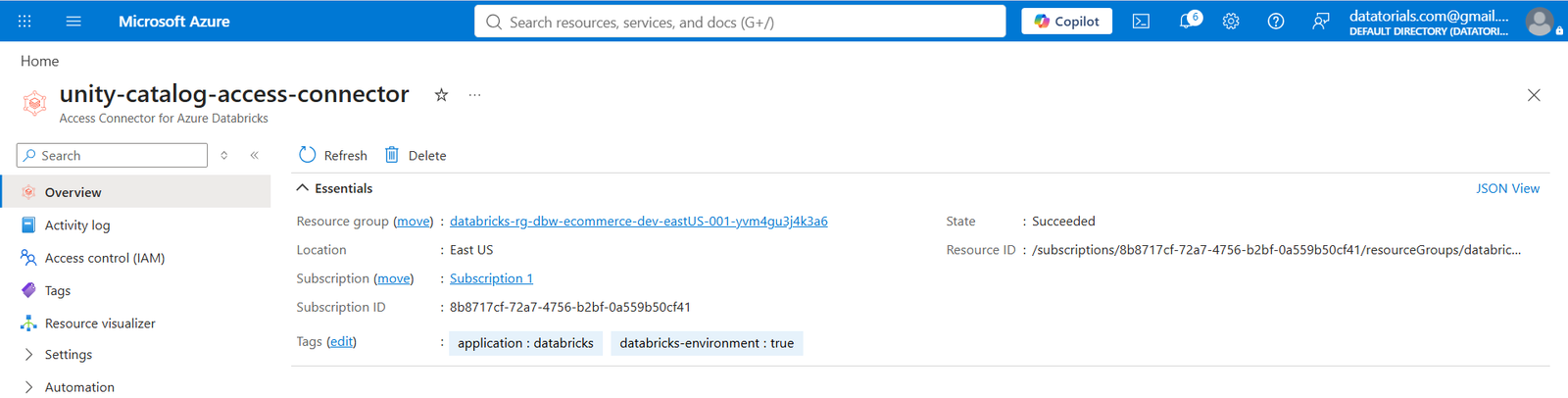
Step 14 — Open Access Connector Overview
Open the Access Connector resource to view its properties.
Step 15 — Copy Resource ID
Copy the Resource ID from the Access Connector Overview page.
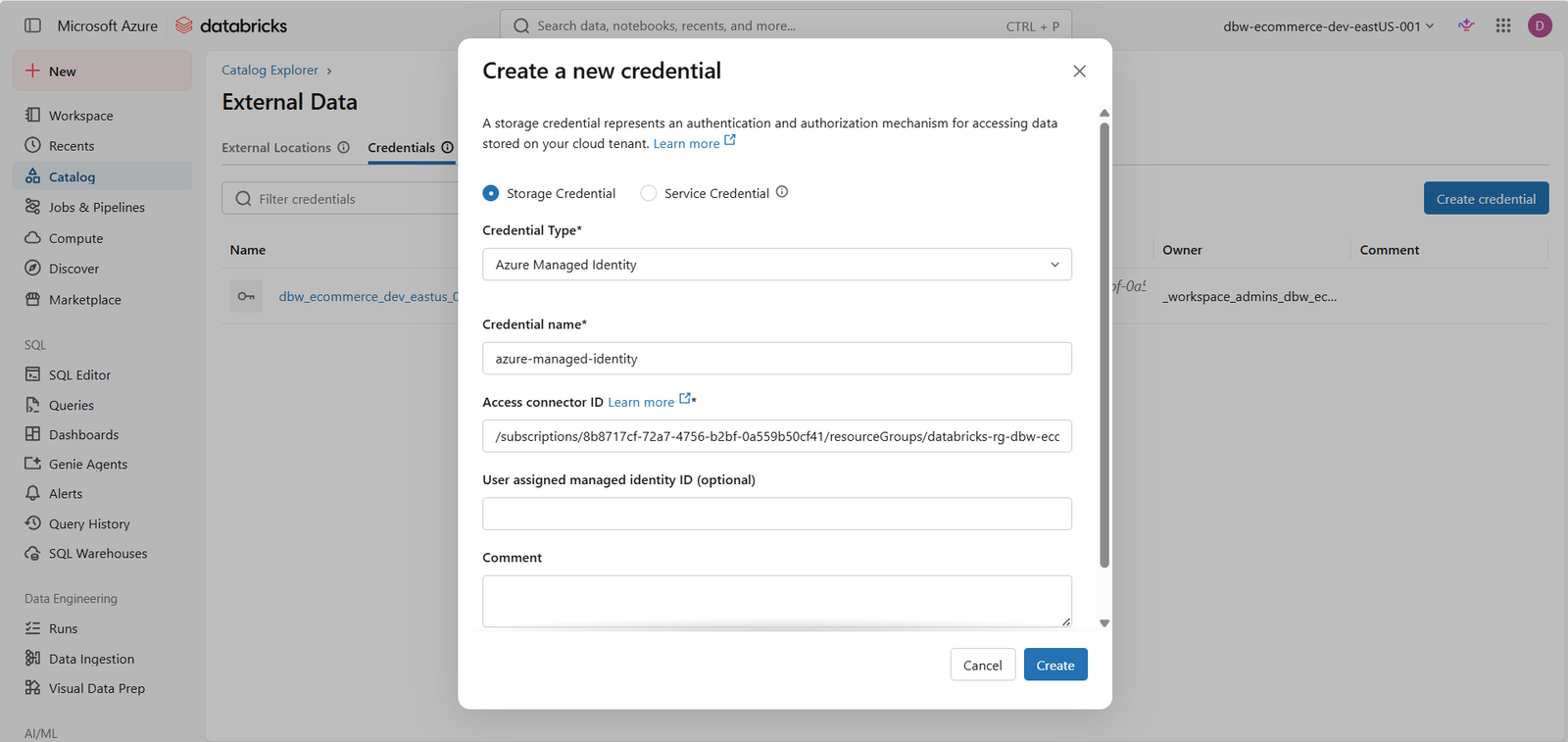
Step 16 — Create Storage Credential
In Databricks Catalog Explorer, create a new Storage Credential using the copied Resource ID.
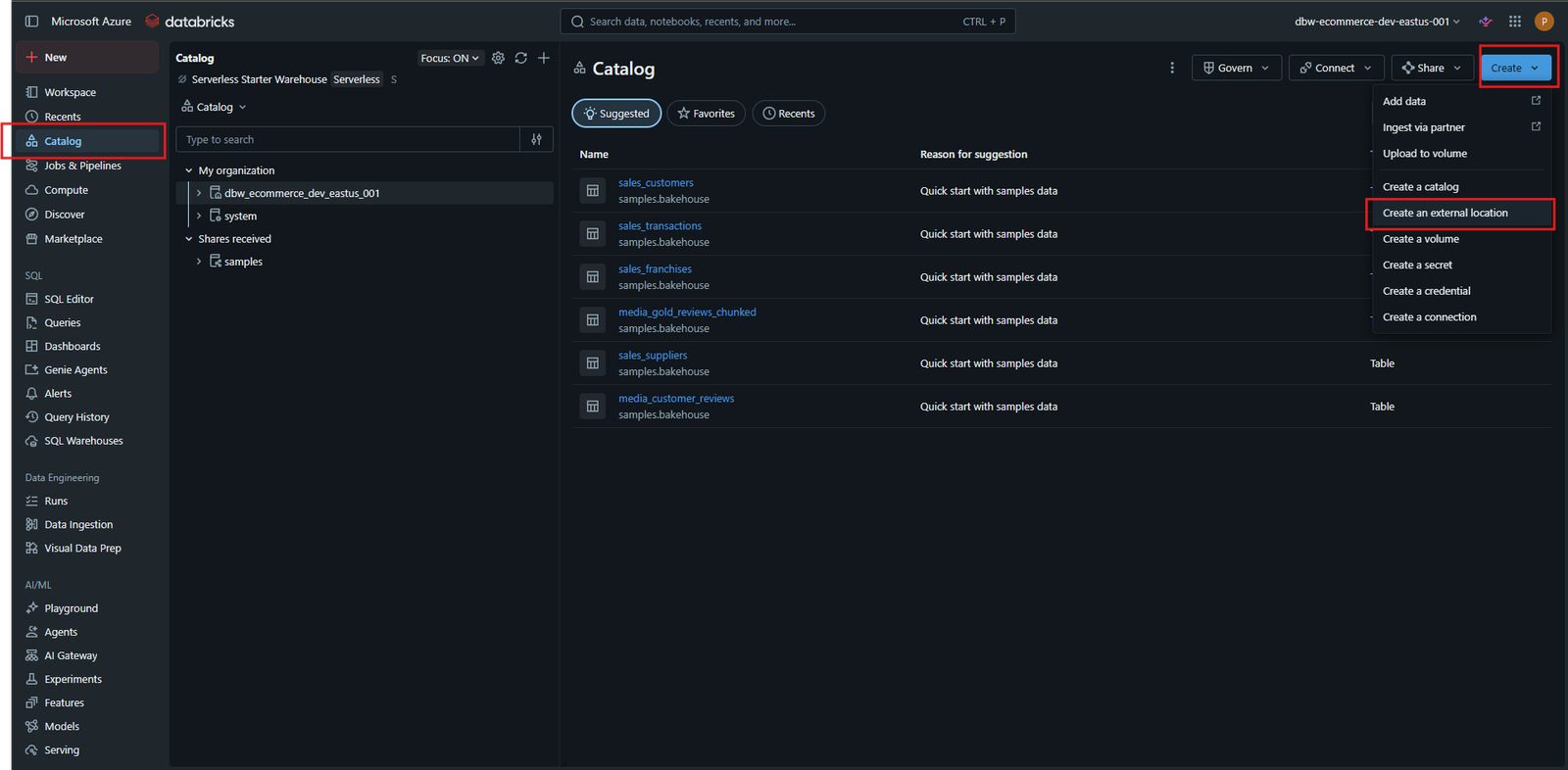
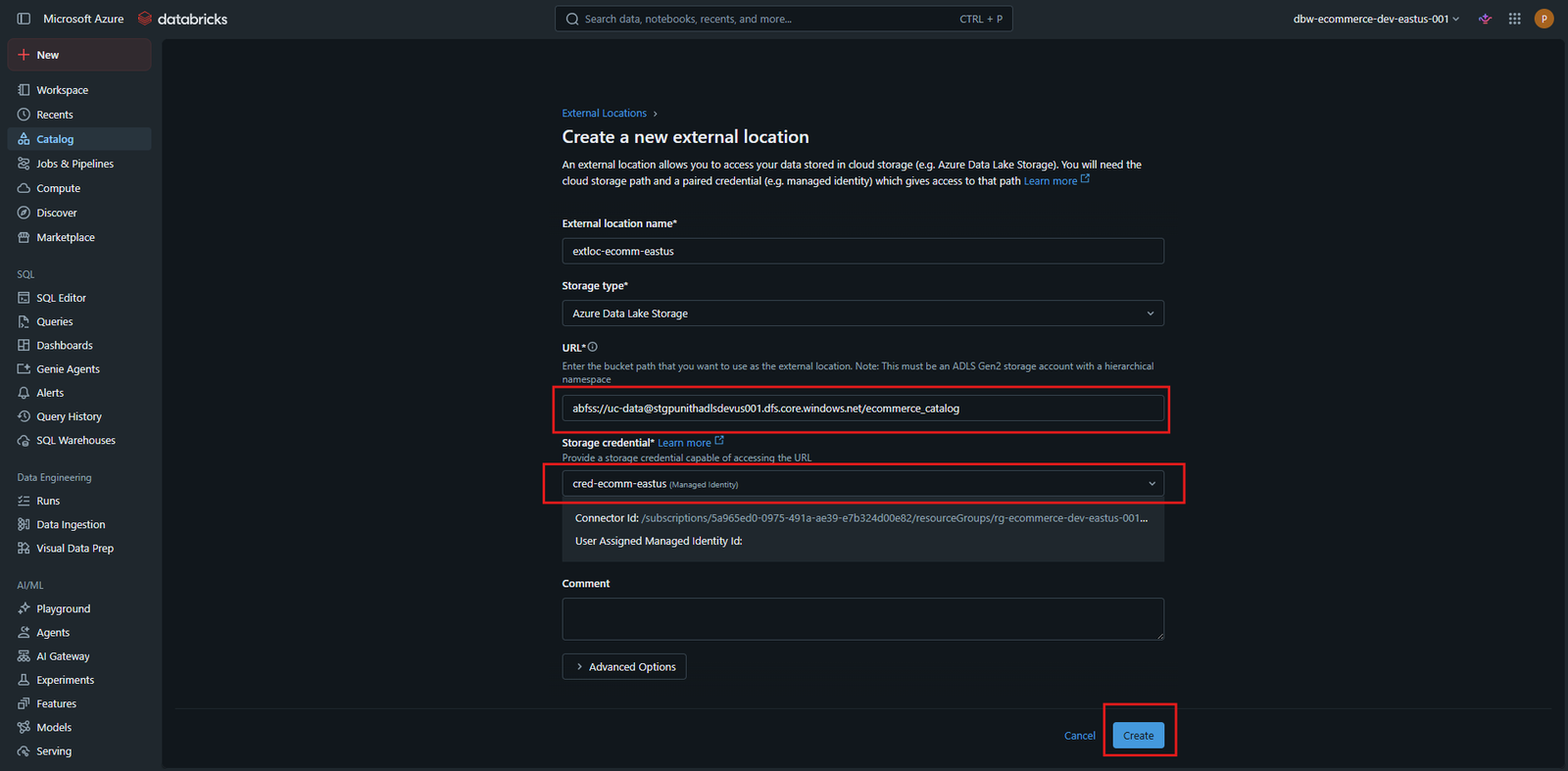
Step 17 — Create External Location in Databricks
Create a new External Location using the Storage Credential.
Step 18 — External Location Created Successfully
Verify that the External Location has been created successfully.
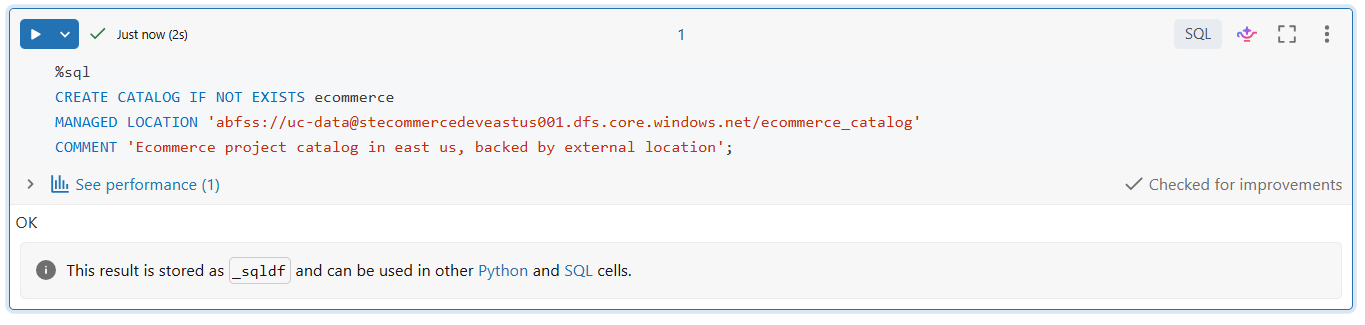
Step 19 — Create Unity Catalog Using SQL
Run the following SQL command to create the Unity Catalog.
CREATE CATALOG IF NOT EXISTS ecommerce
MANAGED LOCATION
'abfss://uc-data@<storage-account>.dfs.core.windows.net/ecommerce_catalog';
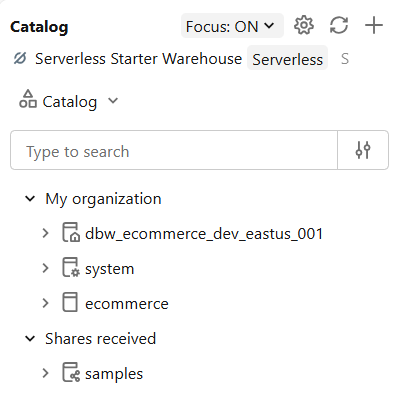
Step 20 — Verify Unity Catalog
Open Catalog Explorer and verify that the new catalog has been created successfully.
Databricks Notebook
This guide is implemented using the following Azure Databricks notebook.
| Notebook | Description |
|---|---|
| 📘 Setup Catalog | Creates the Unity Catalog, Storage Credential, and External Location using Azure Managed Identity. |
Notebook Overview
The notebook automates the complete Unity Catalog setup and performs the following tasks:
- Configure the Unity Catalog environment
- Create the Storage Credential
- Create the External Location
- Create the Unity Catalog
- Verify the successful configuration
Notebook Workflow
Open Notebook
        │
        ▼
Create Storage Credential
        │
        ▼
Create External Location
        │
        ▼
Create Unity Catalog
        │
        ▼
Verify Catalog Creation
Notebook Execution
The notebook executes all Unity Catalog configuration steps and validates that the catalog is created successfully.
Note: The notebook can be executed multiple times because it uses
IF NOT EXISTSwhere applicable, making it safe to rerun during development and testing.
Final Architecture
                      Azure Subscription
                               │
                               ▼
                    Azure Resource Group
                               │
        ┌──────────────────────┴──────────────────────┐
        │                                             │
        ▼                                             ▼
Azure Databricks Workspace                  Storage Account (ADLS Gen2)
        │                                             │
        ▼                                             ▼
   Unity Catalog                             Container (uc-data)
        │                                             │
        ▼                                             ▼
Storage Credential                     ecommerce_catalog
        │
        ▼
External Location
        │
        ▼
Managed Tables
Final Resource Structure
Azure Subscription
│
└── Resource Group
    │
    ├── Azure Databricks Workspace
    │
    ├── Storage Account
    │     │
    │     └── uc-data
    │            │
    │            └── ecommerce_catalog
    │
    ├── Azure Databricks Access Connector
    │
    ├── Storage Credential
    │
    ├── External Location
    │
    └── Unity Catalog
           │
           └── ecommerce
Implementation Progress
The following table tracks the overall implementation process for setting up Unity Catalog with Azure Managed Identity.
| Step | Task | Status |
|---|---|---|
| 1 | Open Azure Databricks Catalog Explorer | ✅ |
| 2 | Create a New Unity Catalog | ✅ |
| 3 | Understand Managed Storage Requirement | ✅ |
| 4 | Create ADLS Gen2 Storage Container | ✅ |
| 5 | Create Managed Storage Directory | ✅ |
| 6 | Navigate to Azure Resource Group | ✅ |
| 7 | Create Azure Databricks Access Connector | ✅ |
| 8 | Deploy the Access Connector | ✅ |
| 9 | Verify Connector Deployment | ✅ |
| 10 | Assign Storage Blob Data Contributor Role | ✅ |
| 11 | Configure Managed Identity Permissions | ✅ |
| 12 | Copy Access Connector Resource ID | ✅ |
| 13 | Create Storage Credential | ✅ |
| 14 | Create External Location | ✅ |
| 15 | Create Unity Catalog | ✅ |
Configuration Verification
Verify that all required Azure and Databricks resources have been successfully configured.
| Resource | Purpose | Status |
|---|---|---|
| Azure Storage Account | Stores Unity Catalog managed data | ✅ |
| ADLS Gen2 Container | Container for catalog data | ✅ |
| Managed Storage Directory | Dedicated catalog storage location | ✅ |
| Azure Databricks Workspace | Analytics and compute platform | ✅ |
| Azure Databricks Access Connector | Provides Managed Identity authentication | ✅ |
| Managed Identity | Secure authentication to Azure Storage | ✅ |
| Storage Blob Data Contributor Role | Grants access to ADLS Gen2 | ✅ |
| Storage Credential | Connects Unity Catalog to Azure Storage | ✅ |
| External Location | Maps ADLS Gen2 path to Unity Catalog | ✅ |
| Unity Catalog | Centralized governance layer | ✅ |
Best Practices
- Use Azure Managed Identity instead of Storage Account Keys.
- Store each Unity Catalog in a dedicated ADLS directory.
- Assign the least privilege required using Azure RBAC.
- Use meaningful names for Catalogs, Credentials, and External Locations.
- Separate Development, Testing, and Production environments.
- Enable diagnostic logs for auditing.
- Monitor Storage Account access using Azure Monitor.
- Use Unity Catalog for centralized governance.
- Organize data using Bronze, Silver, and Gold layers.
- Regularly review IAM role assignments.
Security Best Practices
- Never expose Storage Account Keys.
- Prefer Managed Identity authentication.
- Disable public access to Storage Accounts.
- Use Private Endpoints where applicable.
- Enable Microsoft Entra ID authentication.
- Audit Unity Catalog permissions regularly.
- Grant only the required Azure RBAC roles.
Common Issues
| Issue | Solution |
|---|---|
| Metastore storage root URL does not exist | Configure Storage Credential and External Location before creating the catalog. |
| Permission Denied | Verify the Storage Blob Data Contributor role assignment. |
| Invalid Resource ID | Copy the complete Resource ID from the Access Connector Overview page. |
| Unable to create External Location | Verify the ADLS path and Storage Credential configuration. |
| Catalog creation fails | Ensure the Managed Location path exists in ADLS Gen2. |
Technologies Used
| Technology | Purpose |
|---|---|
| Azure Databricks | Data Engineering Platform |
| Unity Catalog | Centralized Data Governance |
| Azure Data Lake Storage Gen2 | Cloud Storage |
| Azure Managed Identity | Secure Authentication |
| Azure RBAC | Authorization |
| Azure Databricks Access Connector | Managed Identity Integration |
| SQL | Catalog Creation |
| Microsoft Entra ID | Identity Management |